

Two-factor authentication (2FA) adds an extra layer of security to your Signority account. It can be set up either when you are logging in if it has not been set up already, or in your profile settings.
Setting up 2FA from the Log In Page
After logging in to Signority, you may see a prompt to set up 2FA if you haven’t set it up yet. To begin setup:
-
Select Set up now or if you don't want to set it up just yet, click on Not yet, continue to my account.
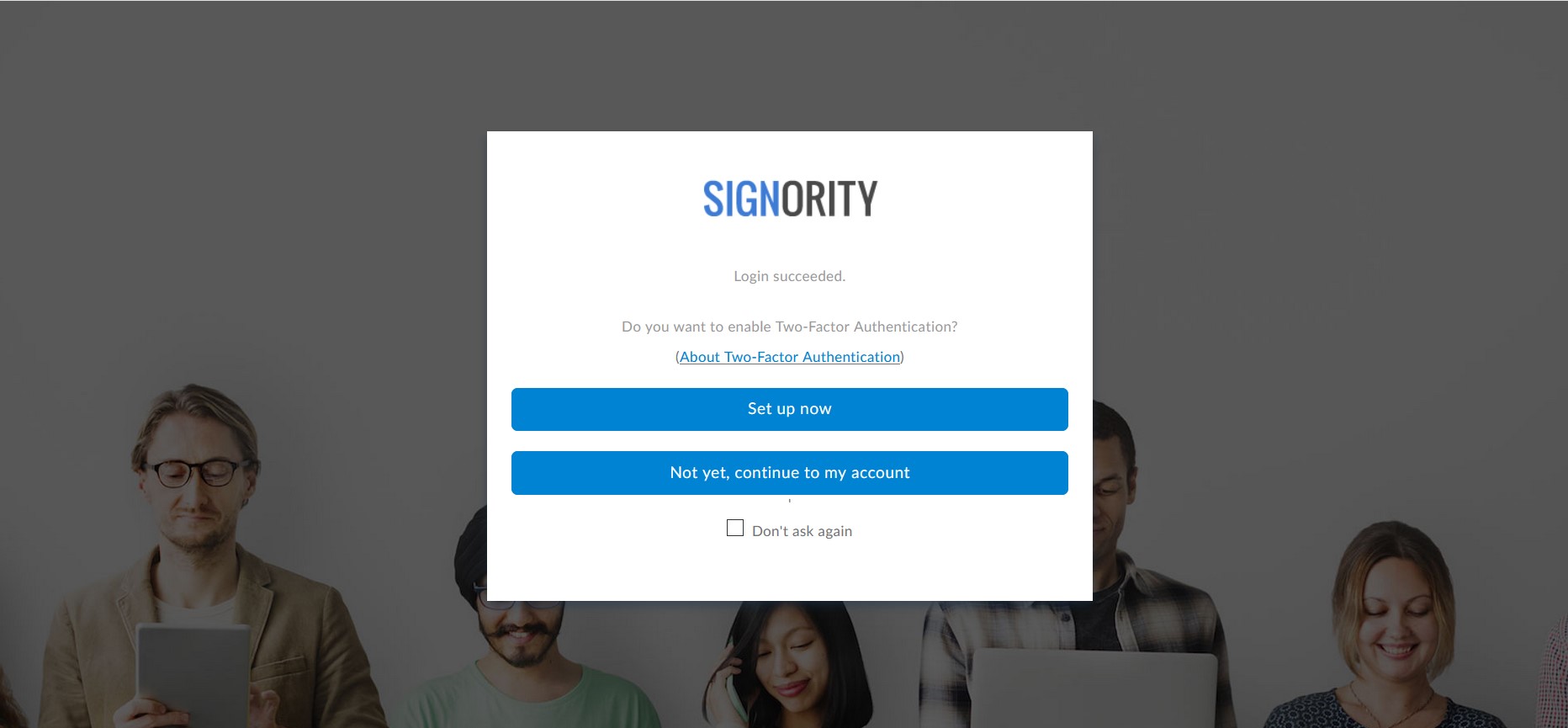
Note: If you do not see an option to continue to your account, it may be that an account admin has enforced 2-factor authentication for your team.
-
Check the box next to Enable two-factor authentication (2FA)
-
You will then be prompted to set up at least two methods of authentication. You have the option of:
-
Receive a code via email: Enter an email to receive the code.
-
Receive a code vie text message (SMS): Enter a phone number to receive the code
-
Answer a security question (Can select up to 2 questions): Select a question from the dropdown and then enter the answer.
-
-
Once you are done setting up your 2 methods, enter your password and then click Save.
After set up, you will be brought to the Signority Dashboard. Now every time you login, you will be prompted to choose one of the 2FA methods that you have set up!
At any time, if you would like to change your 2FA setup, you can do so in your profile settings under Security Settings.
Set up/Modify 2FA from Profile Settings
-
From the Signority Dashboard, select your profile icon in the top right then then click Profile Settings.
-
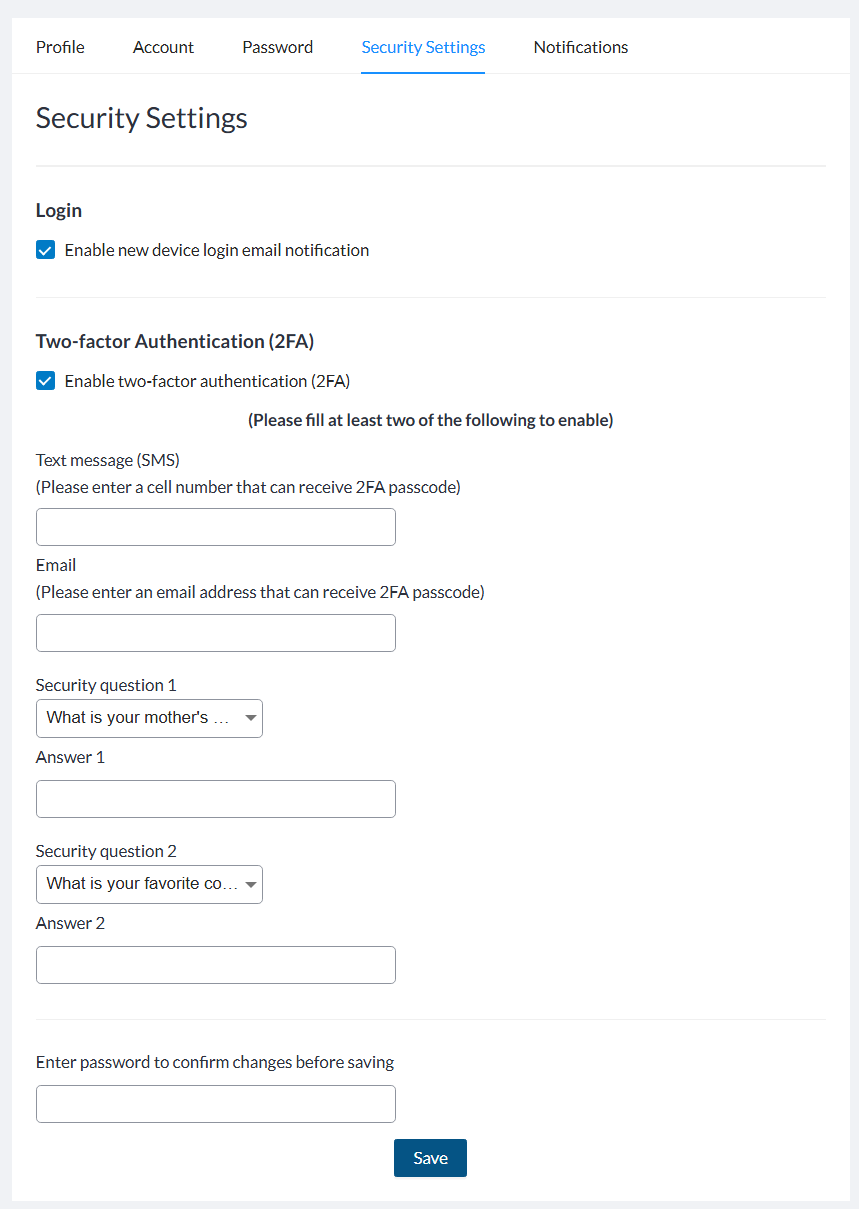
In profile settings, select the Security Settings tab.
-
Check the box next to Enable two-factor authentication (2FA)
-
Under Two-Factor Authentication, enter details for at least 2 authentication methods. You have the option of:
-
Recieve a code via email: Enter an email to recieve the code.
-
Recieve a code vie text message (SMS): Enter a phone number to recieve the code
-
Answer a security question (Can select up to 2 questions): Select a question from the dropdown and then enter the answer.
-
-
Once you are done setting up your 2 methods, enter your password and then click Save.
Now every time you login, you will be prompted to choose one of the 2FA methods that you have set up!
At any time, if you would like to change your 2FA setup, you can do so in your profile settings under Security Settings.