

Masking your email changes the 'Reply to' email when a notification is received, allowing you to use a more general company group email instead of your personal email for a more professional appearance.
Enable Masked Email
-
Navigating to the profile settings by clicking on your profile icon in the top right corner and selecting Profile Settings.
-
Click on the Account tab.
-
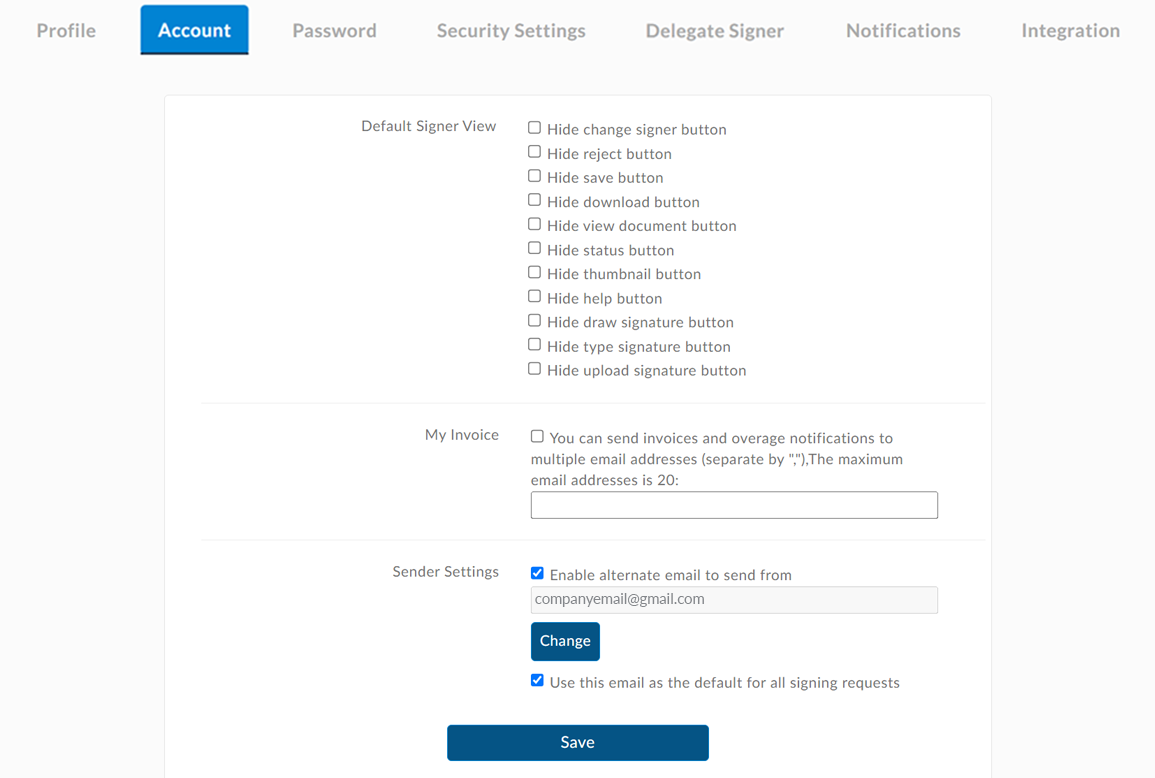
Under Sender Settings, check the Enable Alternate Email to Send From checkbox.
-
Click the Change button below the text field to add the email you want to use as the alternate sender.
-
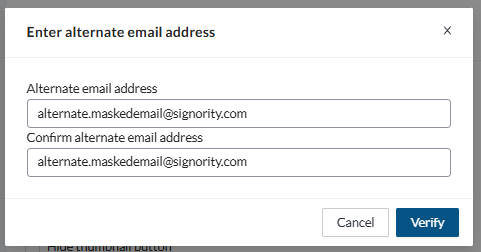
In the window that appears, enter the email address you wish to use as an alternate and click Verify.
-
Check your email for the verification code sent by Signority. Copy the code and paste it into the designated field on the platform, then press Confirm.
-
After successfully verifying the email, it will appear in the text field in "Sender Settings".
-
(Optional) If you want to make this email the default sender for all signing requests, select the checkbox for Use this Email as Default for All Signing Requests below the Change button.
-
Press the Save to apply the changes and confirm the setup of the masked email for sending electronic documents on Signority.
After setting up your alternate email, you now have the will now have the option to send documents from your alternate, or if you set it as your default request then any future documents sent out will be sent using your alternate email address unless specified.
How to Change which Email you are Sending From
Begin by creating a new document document, and then upload your files and adding your recipients.
From the recipient page
If you are on the recipients page, to change what email you send the document from:
-
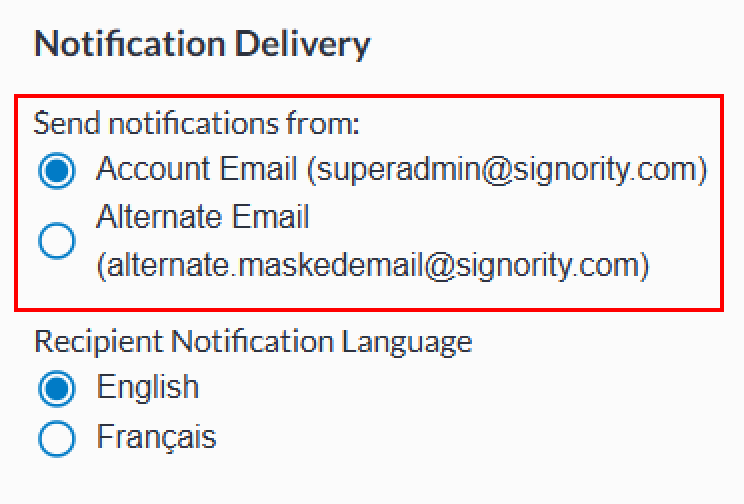
On the right panel you will see a new option title Send Notifications From:
-
Use the radio buttons to choose which email you would like to send that document from.
From the document settings
If you are on the document editor, you can change which email you send from by:
-
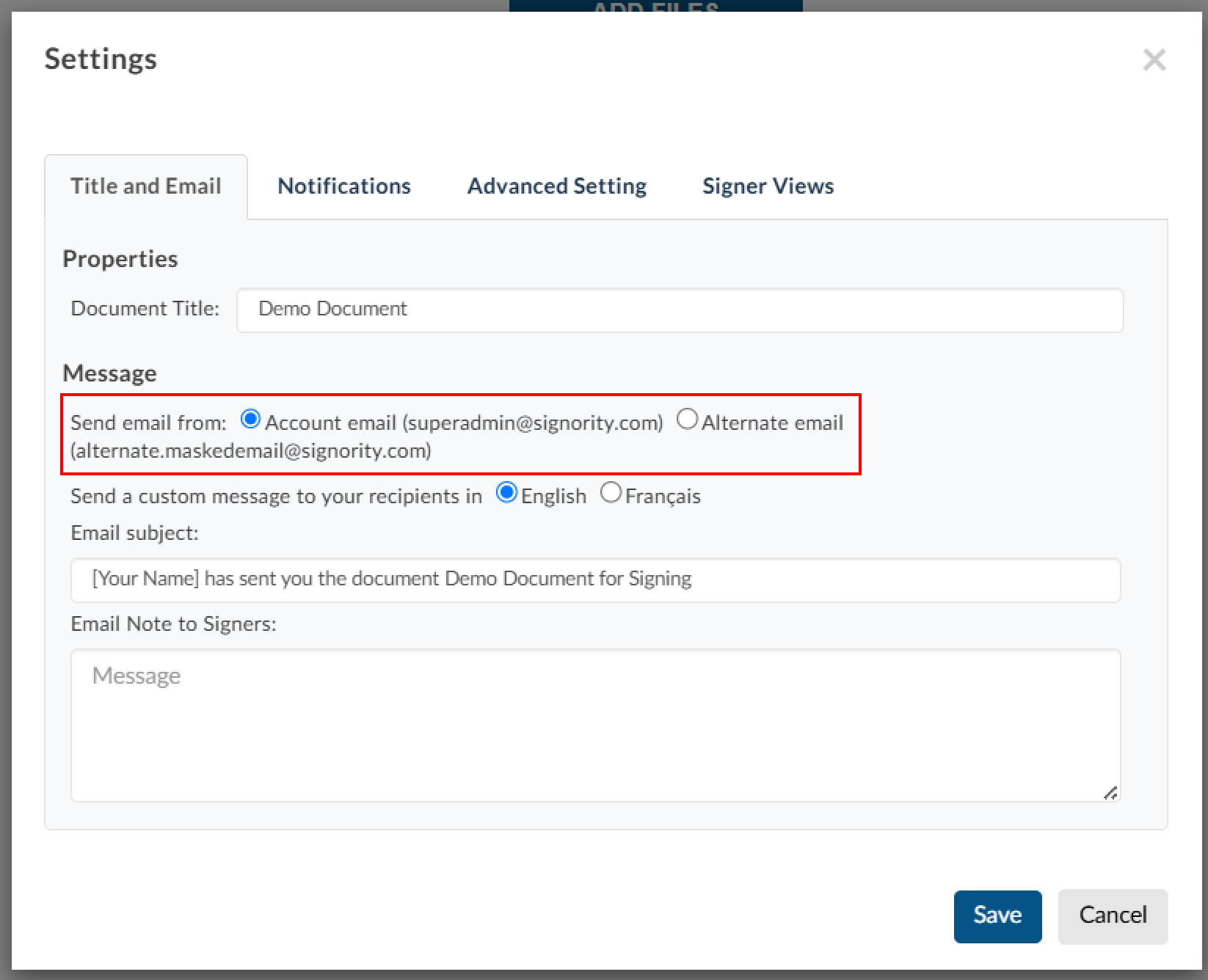
Open the Document Settings by selecting Edit next to Settings on the left panel.
-
In the settings pop-up under Message, use the radio buttons to choose which email you would like to send that document from.
-
Click Save.