

Configuring Simple Mail Transfer Protocol (SMTP) in Signority allows your organization’s email notifications to be sent directly from your own mail server instead of from Signority’s default sender. For example:
-
Without SMTP: [From: secure@signority.com]
-
With SMTP: [From: contracts@yourcompanyname.com]
This creates a more professional experience for recipients, ensures that your messages come from a trusted domain, and can improve email deliverability by reducing the chances of notifications landing in spam or junk folders.
-
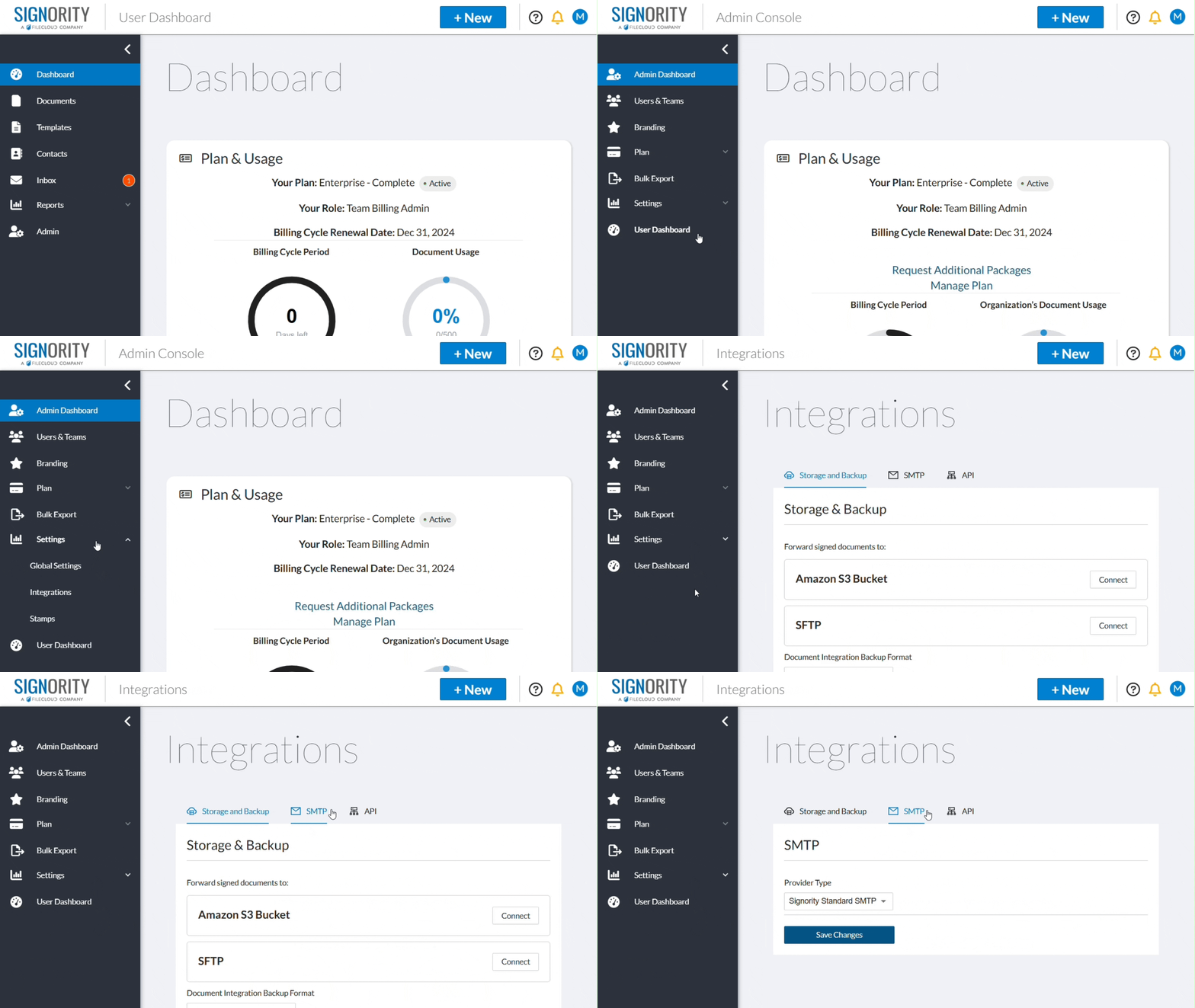
In the left navigation panel, click Admin to open the admin console.
-
In the updated navigation panel, select Settings > Integrations.
-
On the integrations page, select the SMTP tab.
-
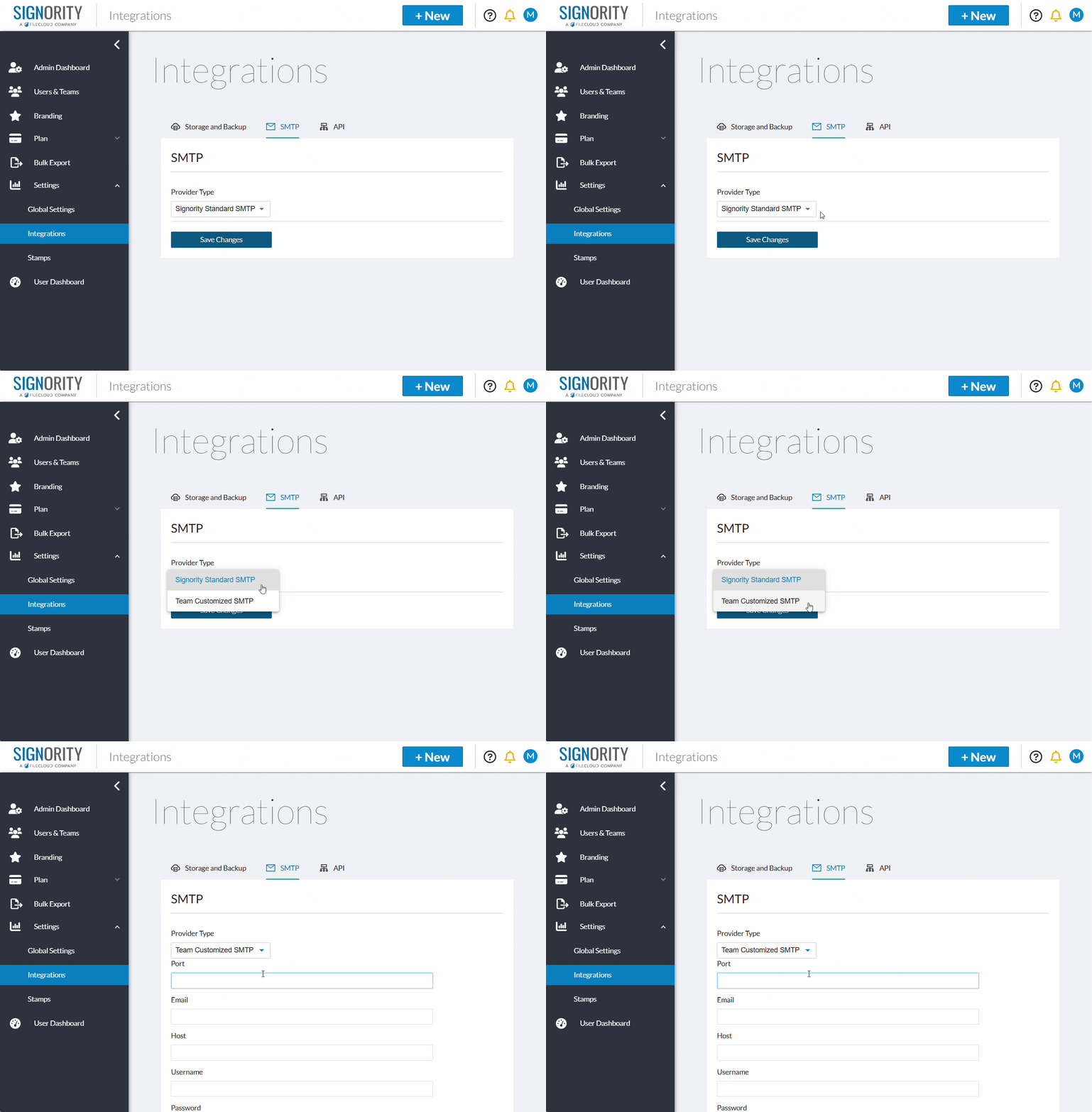
Select the dropdown next to Provider Type and select Team Customized SMTP.
-
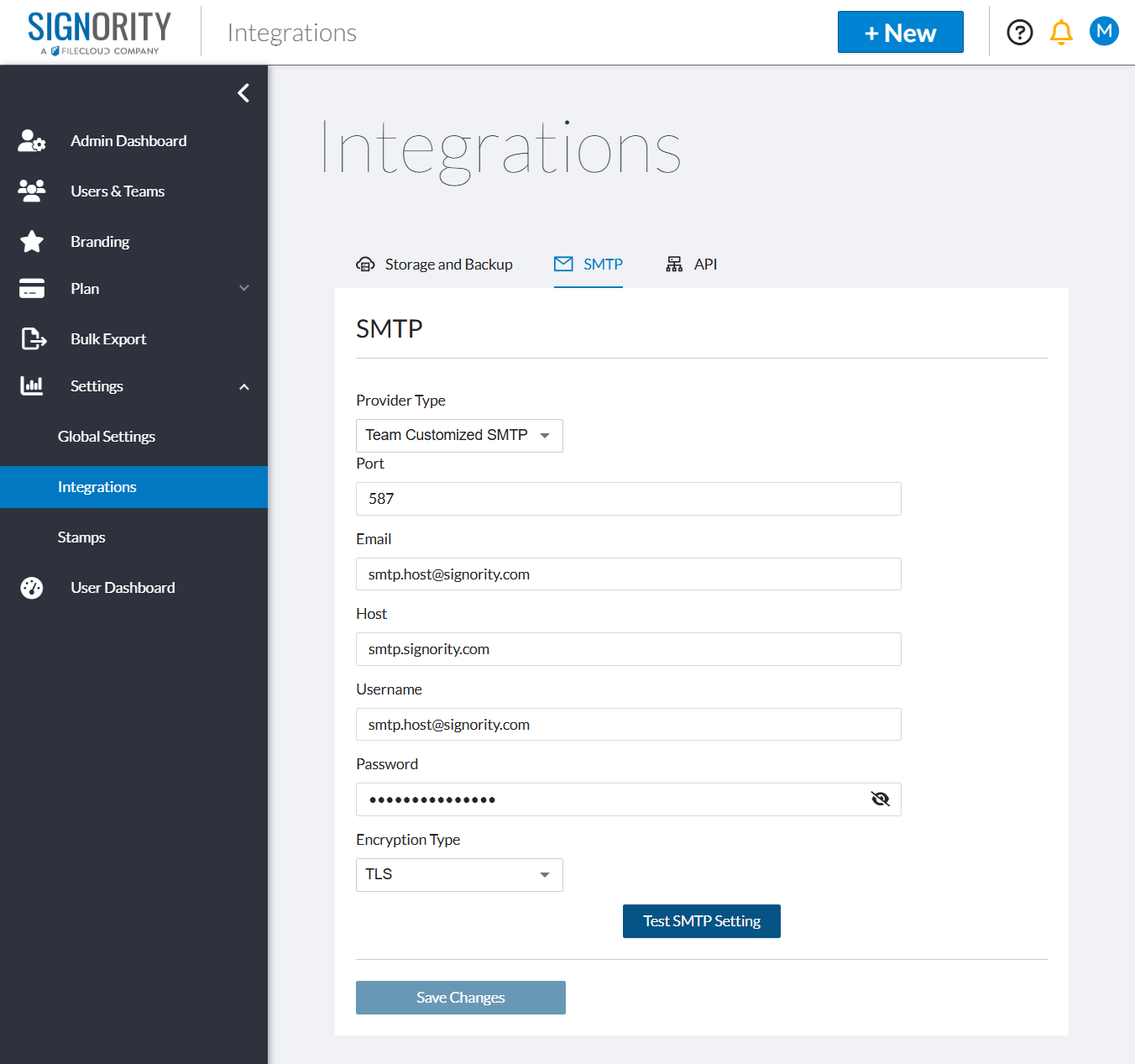
You can then enter the following configuration information:
-
Port: The port number used to connect to your server
-
Email: The email address you want Signority to use as the sender for outgoing notifications.
-
Host: The address of your mail server (e.g., smtp.yourdomain.com).
-
Username: The username required to authenticate with your mail server, often the same as the sender email address.
-
Password: The password for that email address.
-
Encryption Type: The security protocol your mail server requires to ensure emails are transmitted securely (Only SSL or TLS are supported).
-
-
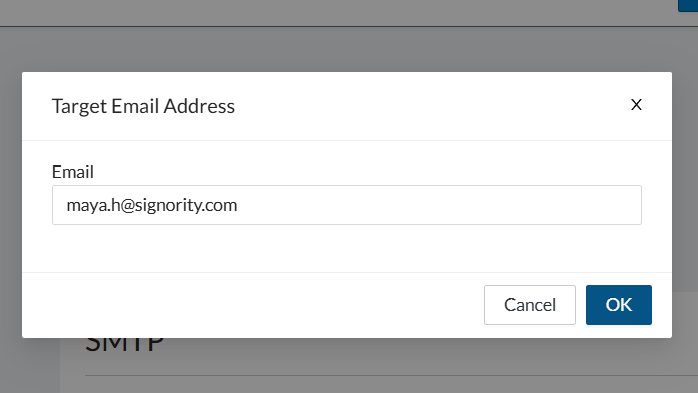
Click Test SMTP Settings.
-
Enter the target email again on the pop-up window.
-
Click OK.
-
If Signority is able to connect the pop-up will close and you can then click Save in bottom left to save your changes.