

In Signority, there are two levels of administrator settings that allow Administrators with the appropriate roles to control configurations at different levels of your account organization. These settings don’t just define defaults—they can also control how much flexibility teams and users have.
Here’s a clear breakdown of how they differ and when each is used:
Global Settings (Organization-wide)
-
Managed by Billing Admins and Super Admins
-
Apply to everyone in the entire Signority account.
-
Establish the default behavior for all users and teams
-
Can be locked to enforce organization-wide rules, preventing teams or users from changing them. (See, Understanding locked vs unlocked settings)
-
Include certain settings that are only configurable at the global level, particularly those related to organization-wide policies, security, or compliance
-
Establish the default standards for all users and teams, helping ensure consistency in how Signority is used throughout the organization.
Team Settings (Group-level)
-
Can be configured by Billing and Super Admins for any team, or by Team Admins for their own team
-
Apply to users in a specific team or subteam, allowing for more tailored configurations
-
Inherit defaults from global settings but can override them when not locked
-
Can also be locked at the team level, enforcing rules for all users within that team
How to Access Global Settings
To open the Global Settings window:
-
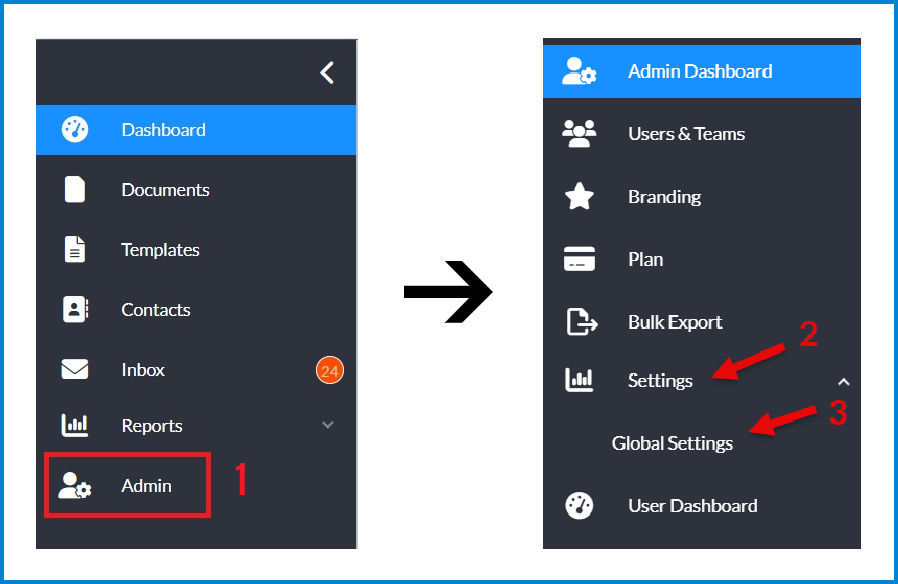
From the user dashboard, clicking Admin at the bottom of your left hand sidebar menu.
-
Select Settings > Global Settings in the updated Admin Console sidebar menu.
-
This will then open the Global Settings window.
Note: Any change you make in the Global Settings will affect all users within the organization’s account. Be cautious when making changes.
How to Access Team Settings
-
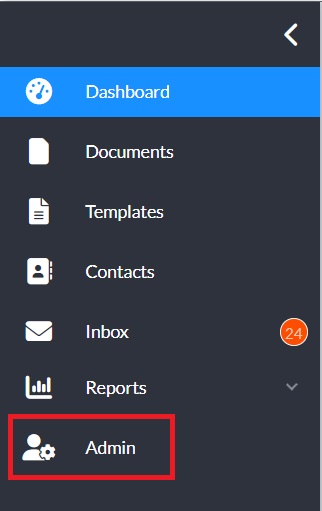
From the user dashboard, click Admin at the bottom of the left-hand sidebar menu.
-
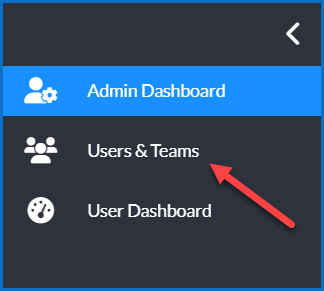
In the Admin Console, select User & Teams.
-
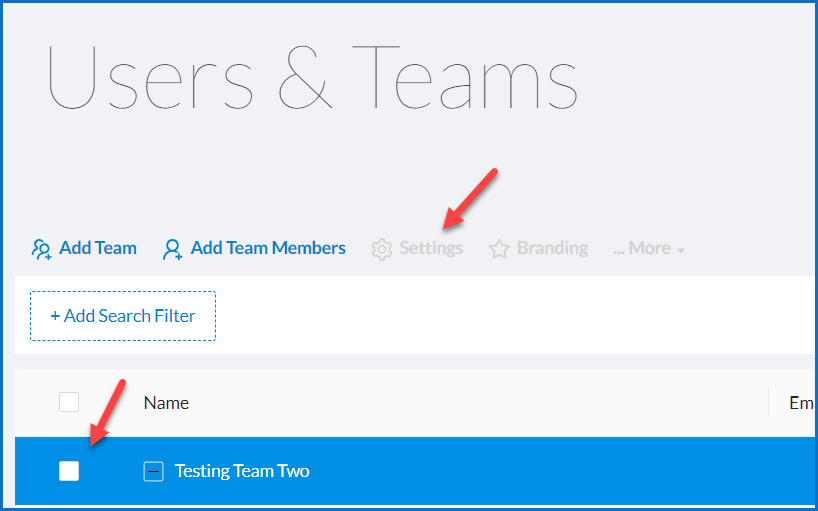
Click the checkbox next to the team you want to configure settings for.
-
Select Settings from the action menu above the filters.
Note: Changes made in Team settings affect all members of that team. Be cautious when making changes.
Navigating Global & Team Settings
While you can scroll through all of the settings, the quickest way to navigate the Global or Team Settings window is to use the tabs menu with each setting category at the top of the page under the header. When you click on a tab, it will jump to that section in the Settings pop-up window. When you do the category will turn blue to show that is the category you are currently reviewing.
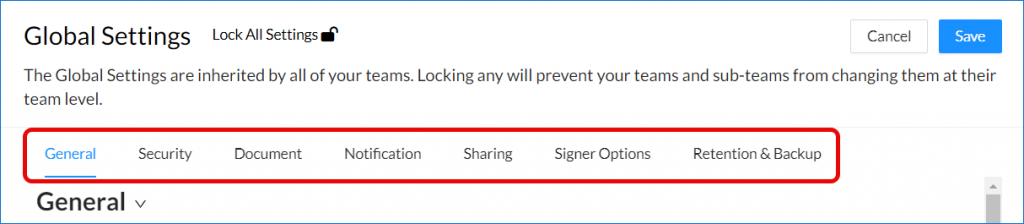
You can also collapse each category to help minimize your view using the Section Expander icon next to each sections header.
Saving Changes
Once you have made changes to your Global or Team Settings, click Save in the top right corner of the window to apply your updates.
Some changes take effect immediately across the entire account, while others—such as Document Settings—only apply to new documents or templates created after the change.
The behavior of each setting will be confirmed within its respective category.
You can also undo any changes you made by selecting Cancel instead. This will revert the settings to their last save configuration.
Global and Team Settings Overview
Signority groups Global and Team settings into several categories. Explore the settings in each category below:
General
-
Help Instructions
-
Default Language
-
Document Usage Warning Threshold Global Settings Only
Security
-
Session logout period
-
Authentication code expiration period Global Settings Only
-
Two-Factor Authentication “Remember Device” Period
For an overview of our security settings, see Configure Security Settings (Global & Team).
Document
-
Enable/Disable eSignature or Digital Signatures
-
Audit trail options
-
Document expiration
-
Signature tag formats
-
Upload file options Global Settings Only
-
Text and date tag sizes Global Settings Only
-
Tag font size Global Settings Only
Notifications
-
Recipient reminders
-
Document event alerts
-
Finalized document notifications
-
Expiration reminders
-
CC Notifications to alternate email addresses
-
Overage notifications Global Settings Only
For an overview of our notification options, see Manage Your Default Document Notifications.
Share Settings
-
Control whether contacts, documents, and templates are automatically shared across your team.
Signer Options
-
Rejection behavior Global Settings Only
-
Hidden signer buttons
-
Signature formats
-
Stamp permissions
For an overview of our security settings, see Default Signer Options.