With a Signority Team plan, you can set up your custom SFTP to automatically download signed documents to your SFTP server.
Note: Only super admins and billing admins are able to set up SFTP settings.
-
In the left navigation panel, click Admin to open the admin console.
-
In the updated navigation panel, select Settings > Integrations.
-
Click Connect next to SFTP.
-
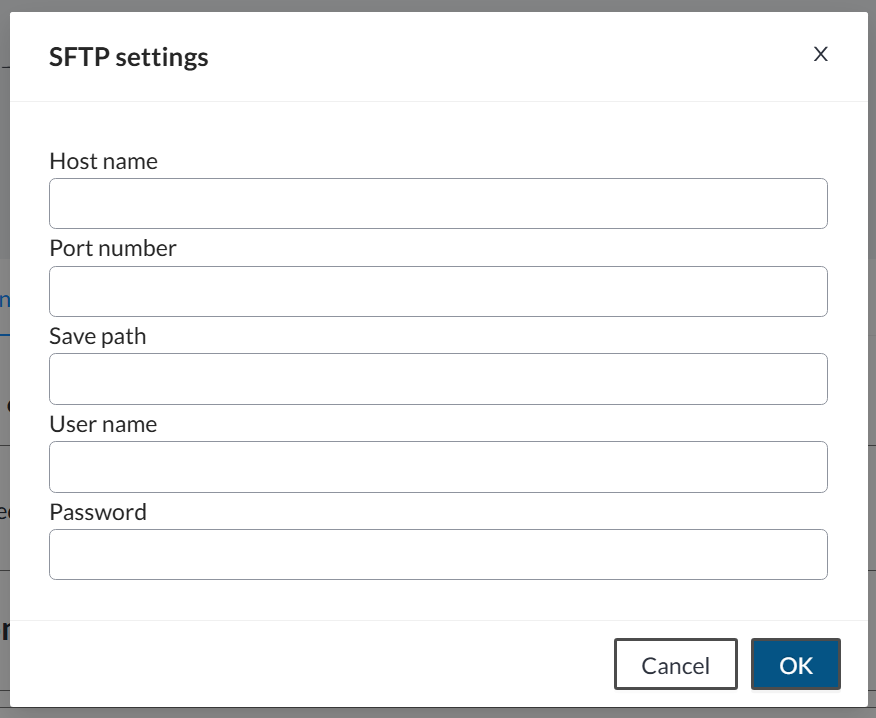
In the SFTP Settings window, enter in the SFTP information:
-
Host Name
-
Port Number
-
Save Path
-
User Name
-
Password
-
-
Click OK to complete the connection.
Once completed, you’ll see a confirmation message indicating the integration is active. All finalized documents will be now be automatically transferred to your SFTP server.
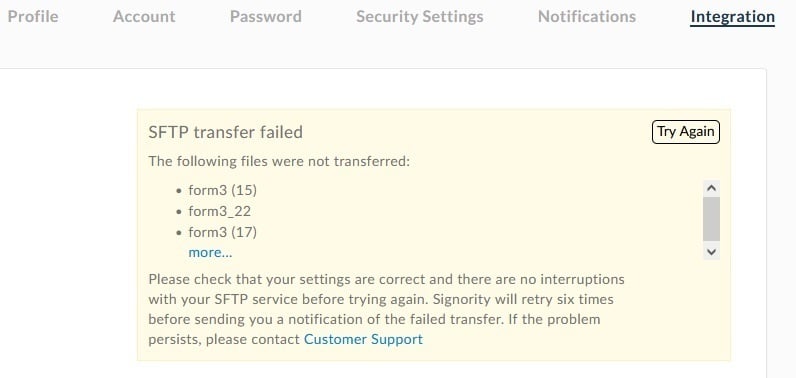
If the SFTP fails and files do not transfer you will receive the message below in your integrations. This will tell you which files did not successfully transfer - simply click the 'Try Again' button to resync the connection.