

Signority’s printer driver helps streamline and facilitate your signing processes by allowing you to upload documents to your Signority account without having to exit your Windows desktop application. Uploading documents to Signority using the printer driver is like printing to a printer, but you’re printing to Signority.
Note: You will need to be logged in as an Admin on your computer and enter your password to allow the Printer to make changes to the device.
Installation
-
Download the Signority's Printer Driver from the Printer Driver page. You can choose between the 32-bit and 64-bit versions.
-
32-bit English Only - Windows 8.1 & 10, Windows Server 2008 R2, Windows Server 2012, Windows Server 2016, Windows Server 2019
-
64-bit English Only - Windows 8.1 & 10, Windows Server 2008 R2, Windows Server 2012, Windows Server 2016, Windows Server 2019
-
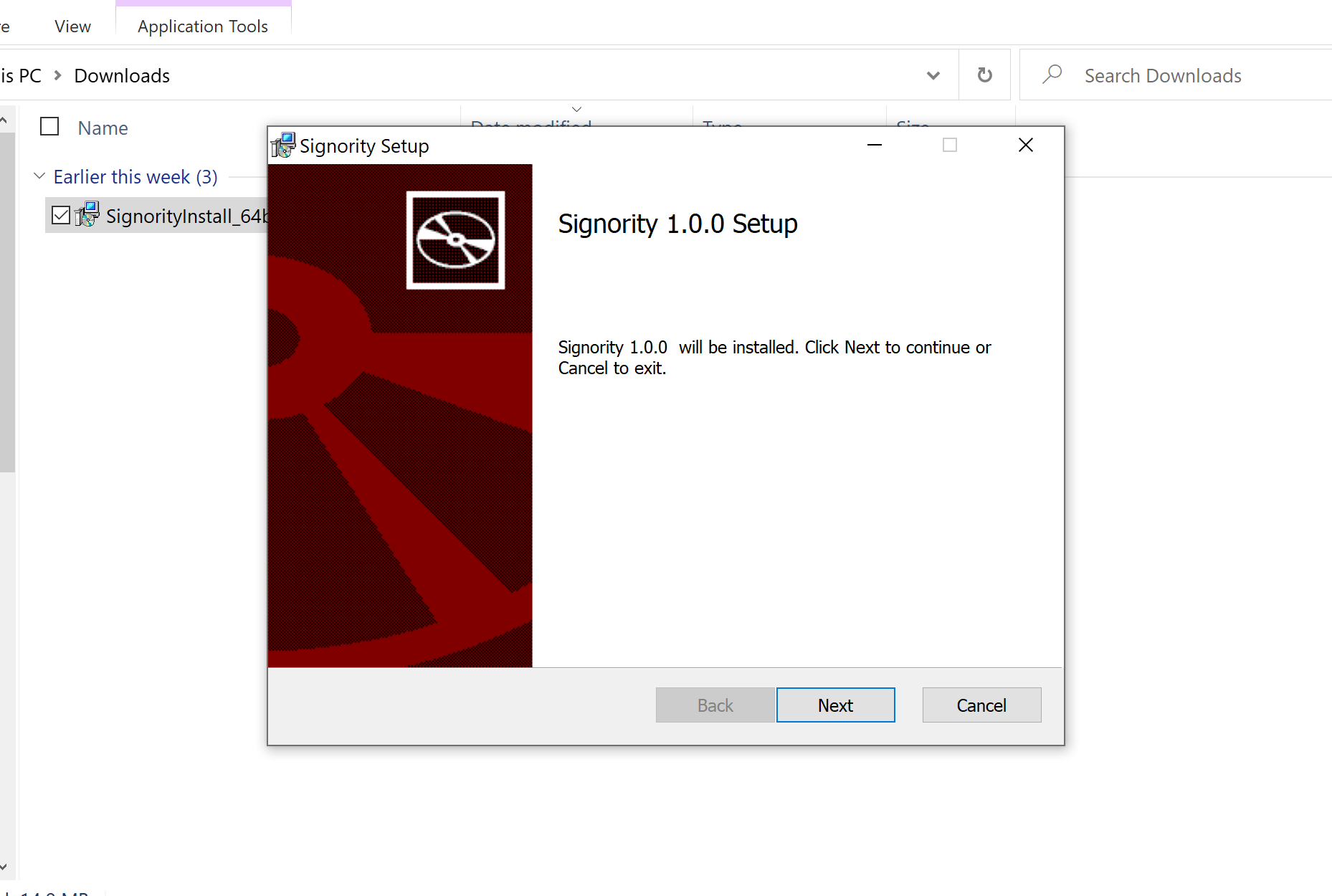
Note: There may be some compatibility issues with Windows 11 Once you have downloaded the Printer Driver, you will want to run the installer. A warning will pop-up titled "Windows protected your PC", which you can click "More info" and then "Run anyway".
-
You can then continue with the installation process.
-
Once the installer has run, you will need to restart your computer.
Use Printer Driver
-
Open the document you want to load into Signority from your desired Windows application.
-
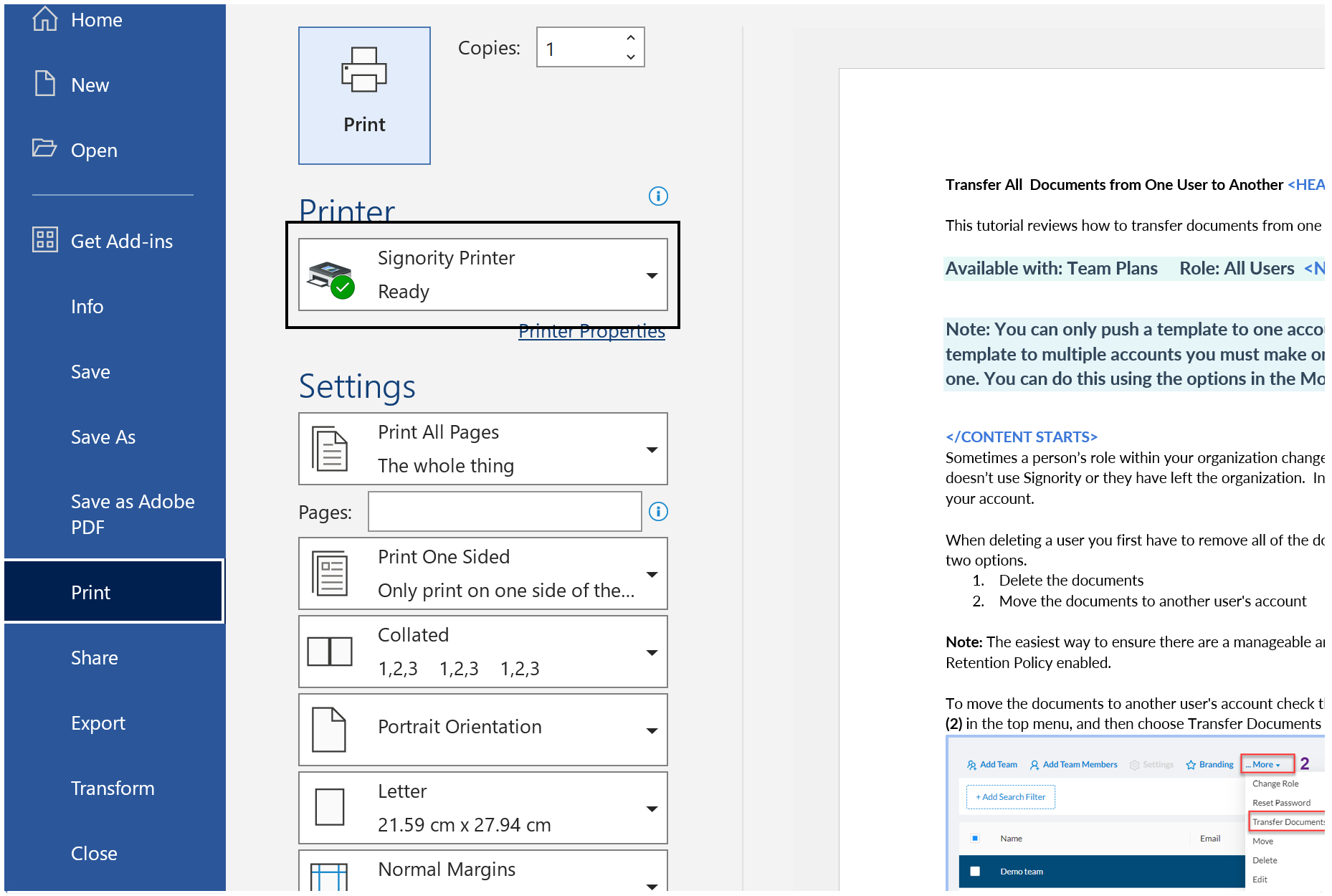
In the application, select Print
-
Choose Signority Printer as the printer.
-
Adjust your print settings as desired before pressing Print.
-
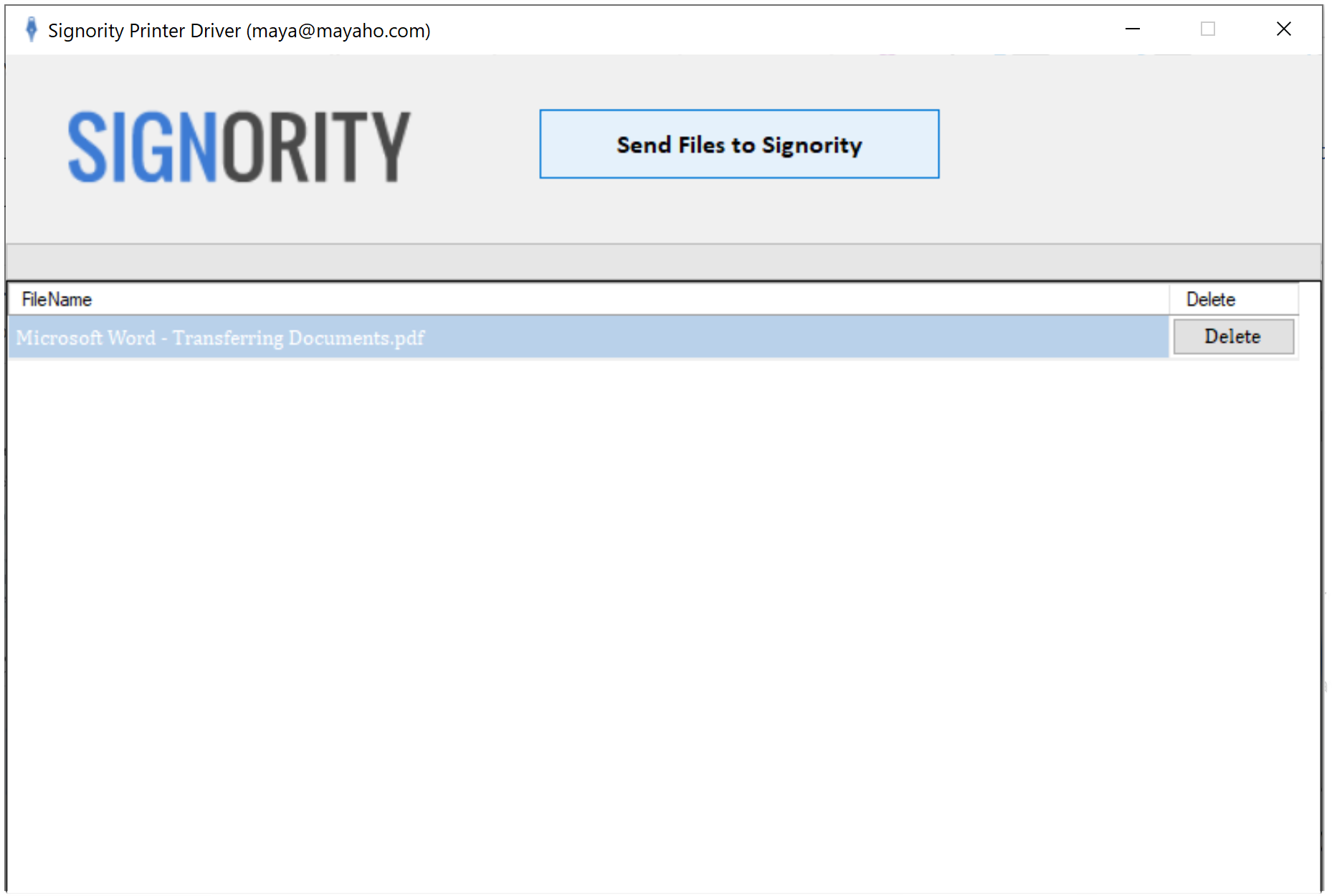
Signority's Printer Driver will then open and prompt you to sign in to your Signority account. If it does not prompt you to login, you may need to log in to Signority on your browser before running the Printer Driver.
-
Once you are on the printer driver, you can select Send Files to Signority.
-
You will be redirected to the Signority Editor page where you can set up your document and send for signature.
Note: You may need to log in to Signority on your browser before running the Printer Driver