custom plan feature
In this tutorial, we will go over how to log in to Signority through Single Sign-On (SSO). If you wish to set up SSO please contact us!
Before you Begin: You will need to make sure that your organization has set up SSO with Signority. Once you have verified that it has been set up, you are ready to go!
Signing in For the First time Using SSO
-
Go to your email and locate the invitation that was sent to you.
-
Open the email and clicking the link in the invitation.
-
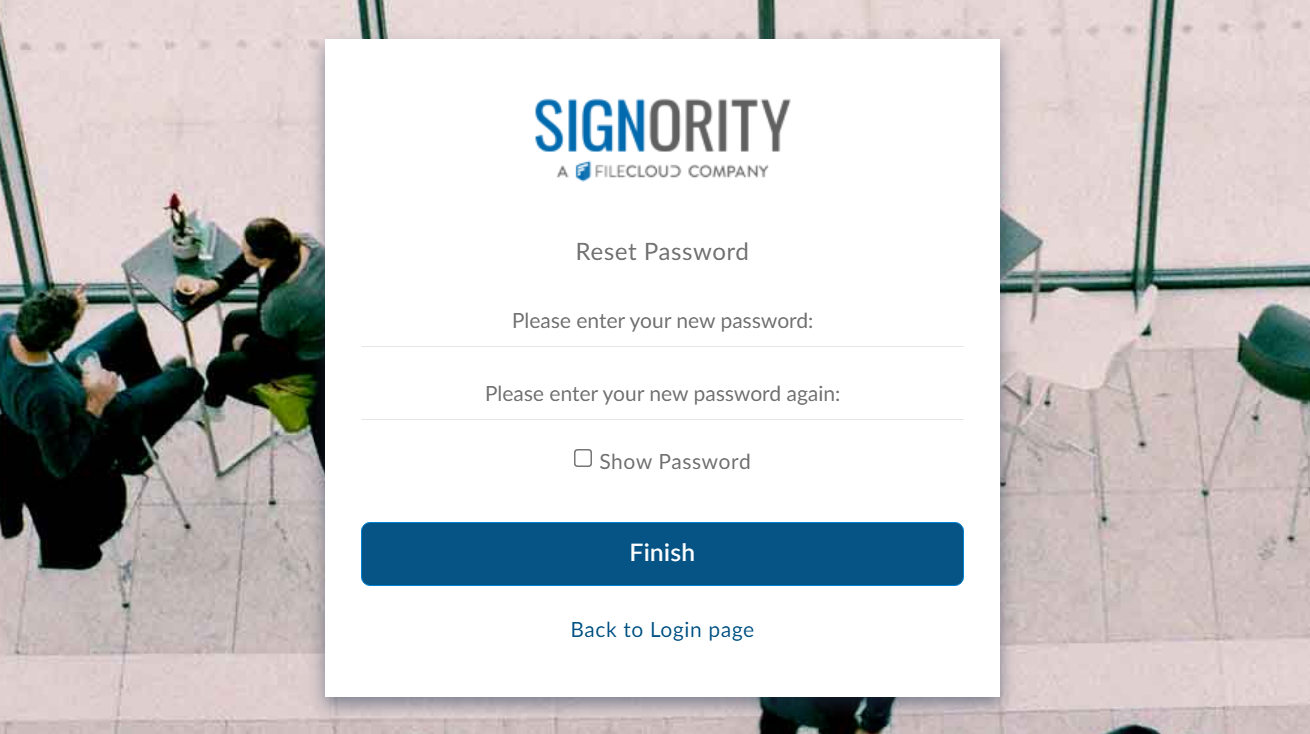
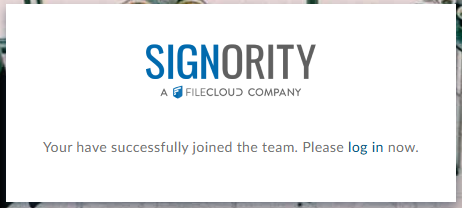
You will be redirected to Signority and automatically added to your team.
-
Select log in proceed to the login page, where you can log in using the email that the invitation was sent to.
Logging in with SSO
If this is your first time logging into Signority with SSO please jump to, Signing in For the First time Using SSO.
You will then be redirected to your organization's login page. Once you've signed in, you're ready to start signing with Signority!
-
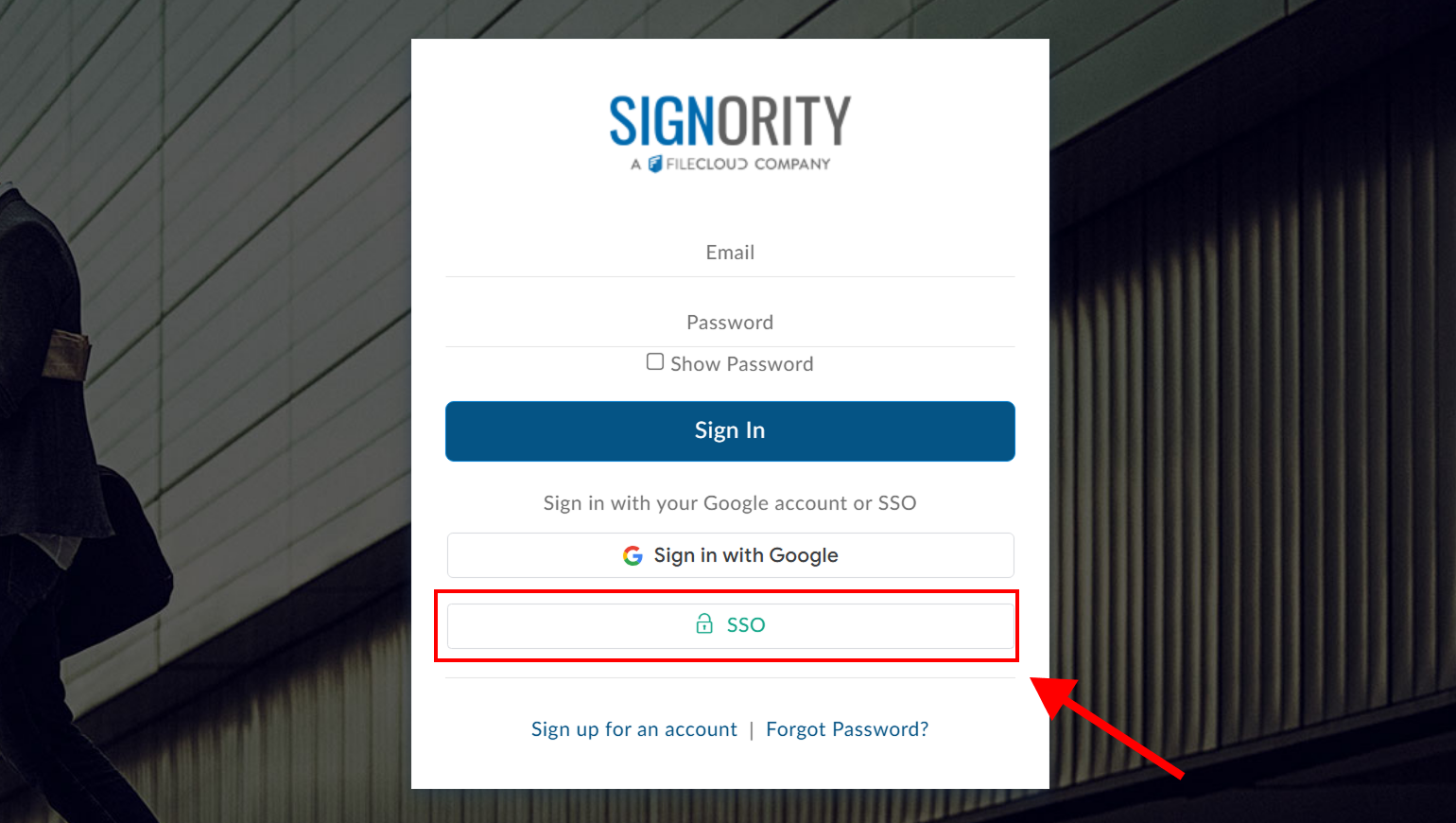
To start, go to the Signority login page.
-
Click on the SSO button.
-
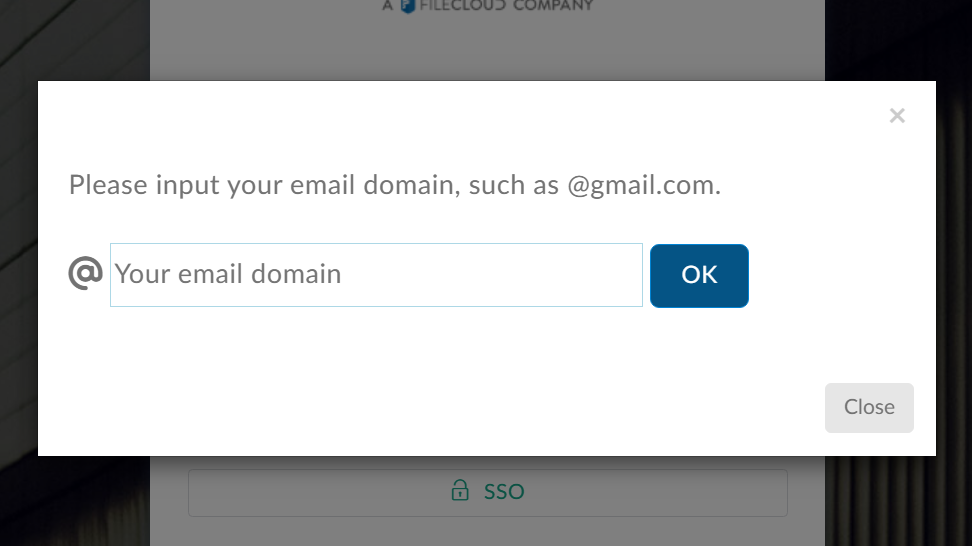
When prompted, input your email domain and hit OK.
Set up SSO Signority Credentials Log in
Signority enables organizations set up with SSO to allow their users to log in with to Signority with Signority Credentials, as well as standard SSO. This is an additional feature above standard SSO, so please check that this is enabled for your organization.
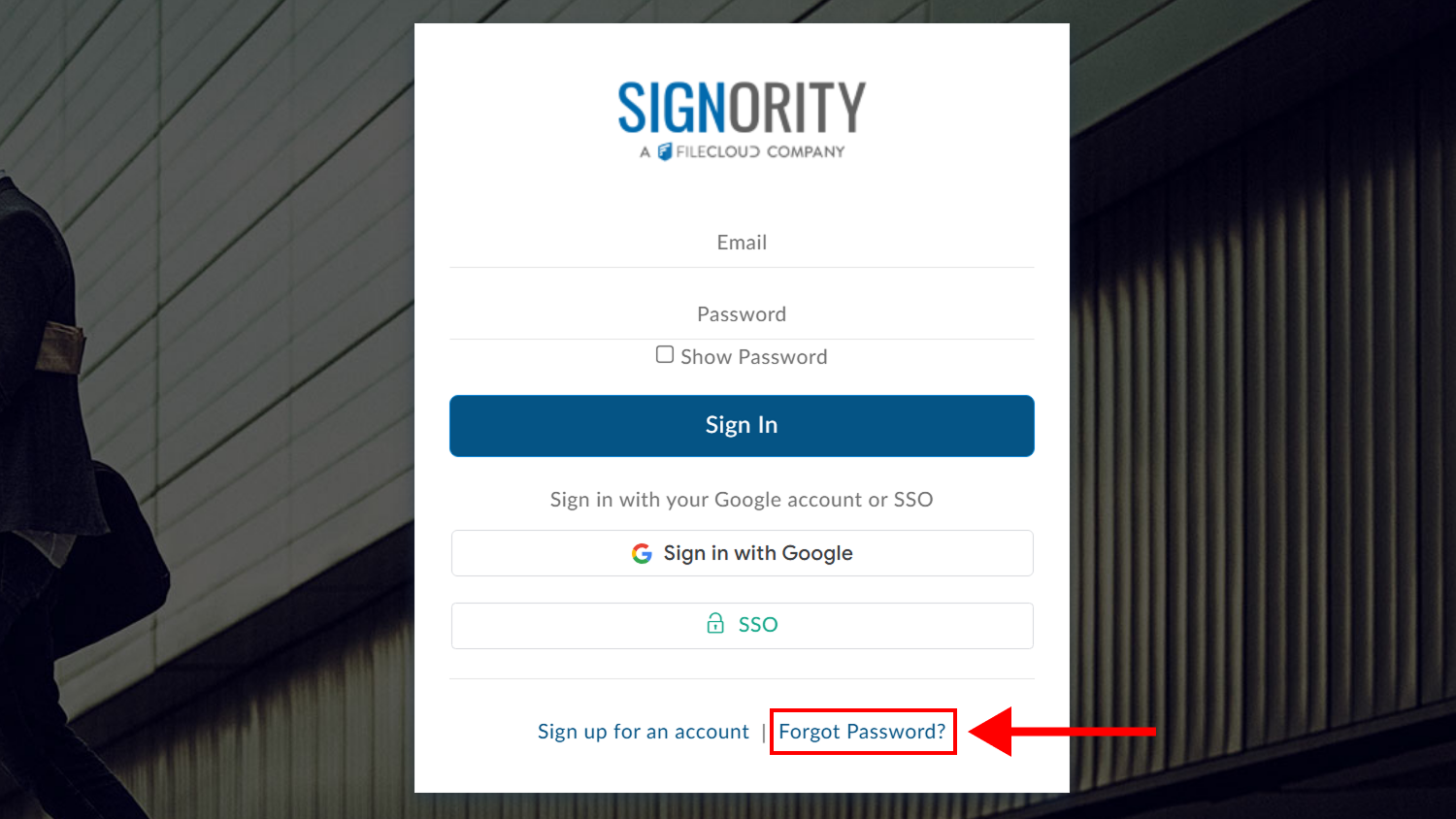
If it is your first time logging in this way, you will need to set up your Signority password. To do this, you will need to follow the steps of resetting your password using Forgot Password.
-
Go to the Signority login page.
-
Click Forgot Password.
-
Enter your email when prompted and click OK.
-
You will be sent an email with a link to reset your password. Click this link to create your Signority password.