

Save time trying to scan through all your user’s and teams to find a team members by searching with filters.
-
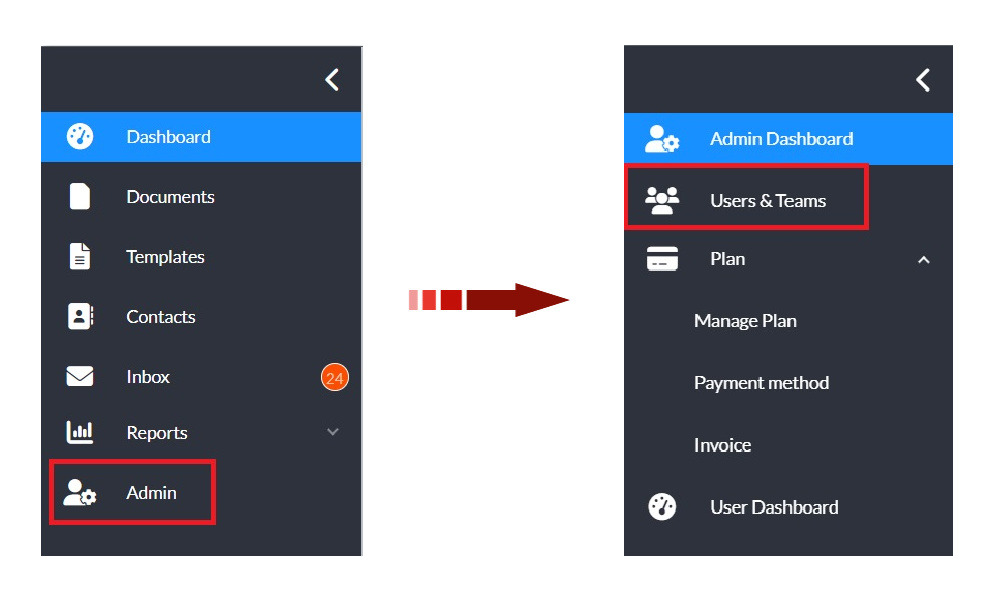
In the left navigation panel, click Admin to open the admin console.
-
Select Users & Teams in the updated navigation panel.
-
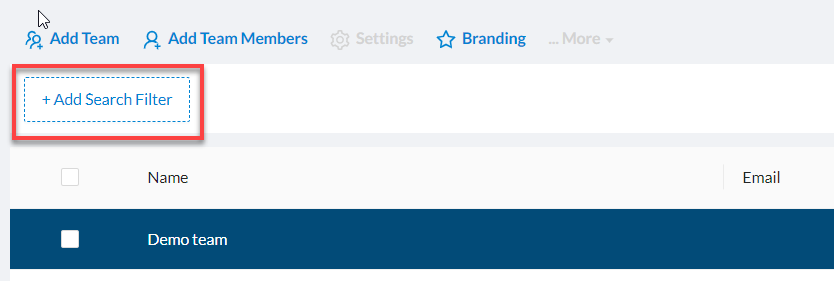
Click +Add Search Filter in the top left below the action menu.
-
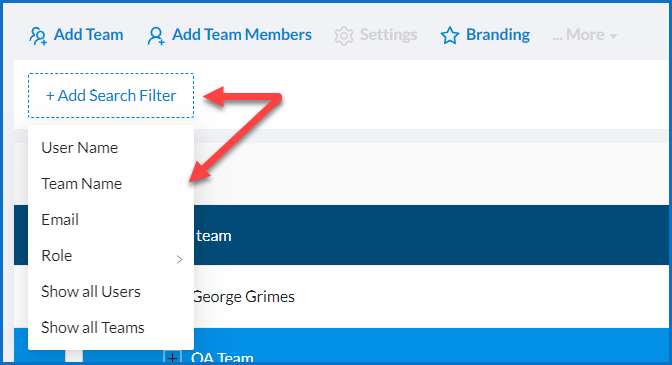
In the menu that appears choose the filter that you want to use. The available filters are:
-
User Name
-
User Name – Search for users by their name.
-
Team Name – Search for teams by name and view their members.
-
Email – Search for users by their email address.
-
Role – Filter users based on their assigned role.
-
Show All Users – Display all users in a single list, without grouping by team.
-
Show All Teams – Display only teams, without showing individual users.
-
-
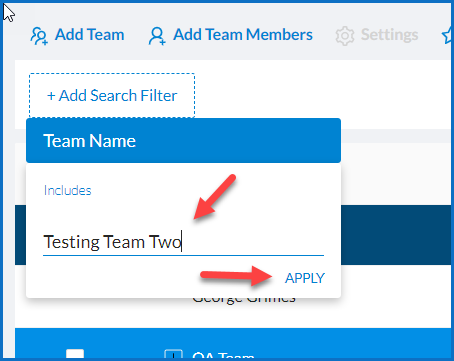
If you select User Name, Team Name, Email, or Role, enter your search term in the field that appears and click Apply.
-
The filter will appear next to the filter button, and the results will update automatically.
-
To refine your results further, click + Add Search Filter again and apply additional filters.
Example
You can combine multiple filters to narrow your results:
-
First, filter by Team Name (e.g., “Testing Team Two”) and click Apply
-
Then, add another filter such as Role > Team Admin
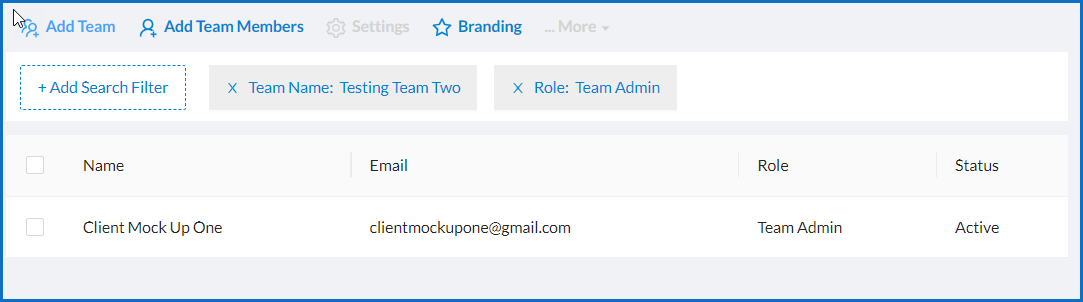
The results will update to show only users who match all selected filters.