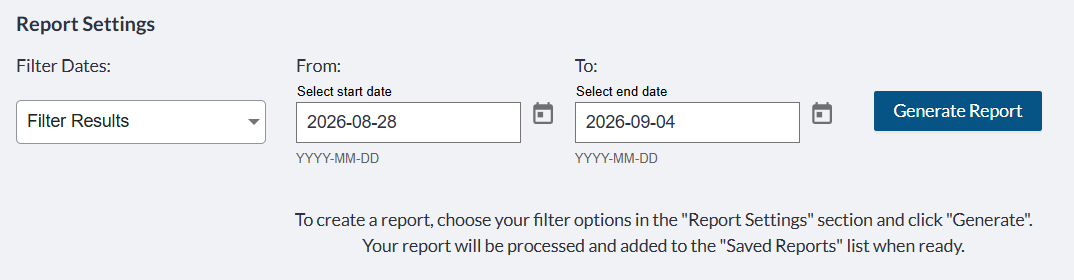
Depending on the type of report you are running, you can filter the results by date using Signority’s presets or your own custom dates to customize the report to get the data you need. If you are running a Security Report, you can also customize which user and event type you want the report to show.
Filter Results by Date
There are two ways to configure the time period the report will cover. You can either use:
-
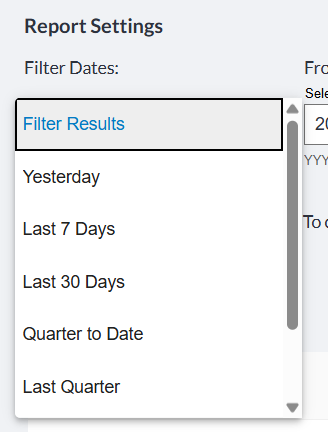
Filter Results dropdown to filter your reports by a Signority’s default timelines. The preset time periods are:
-
Yesterday: The day prior
-
Last 7 Days: The previous 7 days
-
Last 30 Days: The previous 30 days
-
Quarter to Date: Quarters are based on the calendar year, Jan-Feb, March-May, June-Sept, and Oct-Dec. For example, if you are running this report on August 8th you will receive a report for the dates of June 1 to August 7th
-
Last Quarter: The quarter prior to the one you are currently in
-
Year to Date: From January 1st to the day before running the report
-
Subscription Period to Date: From your subscription start date (or last renewal date) to the day before you are running the report (If you are paying monthly, you will receive only up to the previous 30 days. If you are yearly, it will go back up to 364 days, depending on when you are running it.)
-
Note: When you run one of these filters the results will not include the day you are making the request.
-
To and From fields to set up your own timeframe.