

Do you have a document that requires multiple recipients? Signority's Add Multiple Recipients option allows you to simply enter or paste a list of emails separated with semicolons and the recipients will be created automatically.
To Add Multiple Recipients Simultaneously:
-
Start the process of Creating a New Document, uploading your files on the upload page or click Next in the top right to go to the recipients page.
-
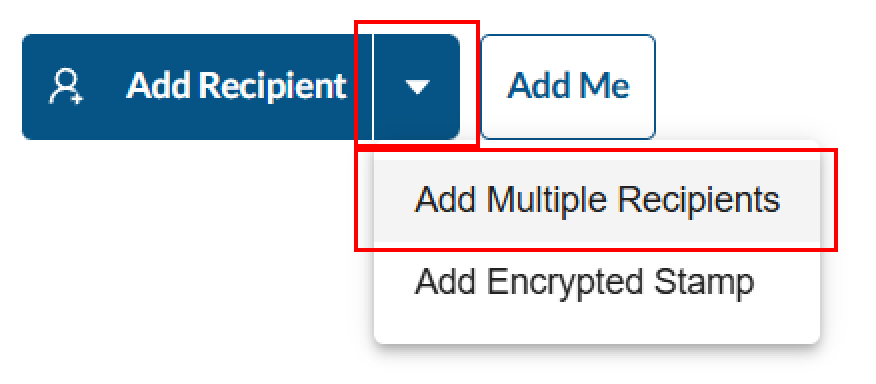
Once on the Add Recipient's page, click on the dropdown button next to Add Recipients and select Add Multiple Recipients.
-
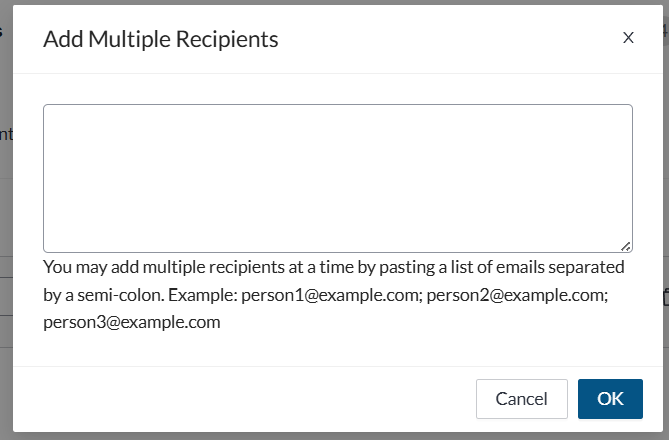
In the pop up window, type or paste your recipient's emails separated with semicolon and a space (; ). Note: Do not place a semi-colon after the final email address.
-
Click OK when done.
-
Your recipients will automatically be added as Signer recipients in the same order they were entered. Signority will also populate each recipient's name using the portion of their email address before the @ symbol.
Example: If the email entered was
john.doe@email.com, the recipients name will be entered as john.doe.
Note: If any email addresses are invalid, Signority will highlight them in red so you can correct them.
-
Review the recipients names, and make any required corrections or changes to the recipients settings.