

By default, Signority sends the document to everyone all at once, and they can sign as soon as you send the document. However, if your document has a specific workflow that people need to sign in, you can create a signing order to control when in the workflow your recipients will receive and sign your document.
Setting Up a Signing Order
-
On the Recipients page or Recipients list pop-up, add your recipients.
-
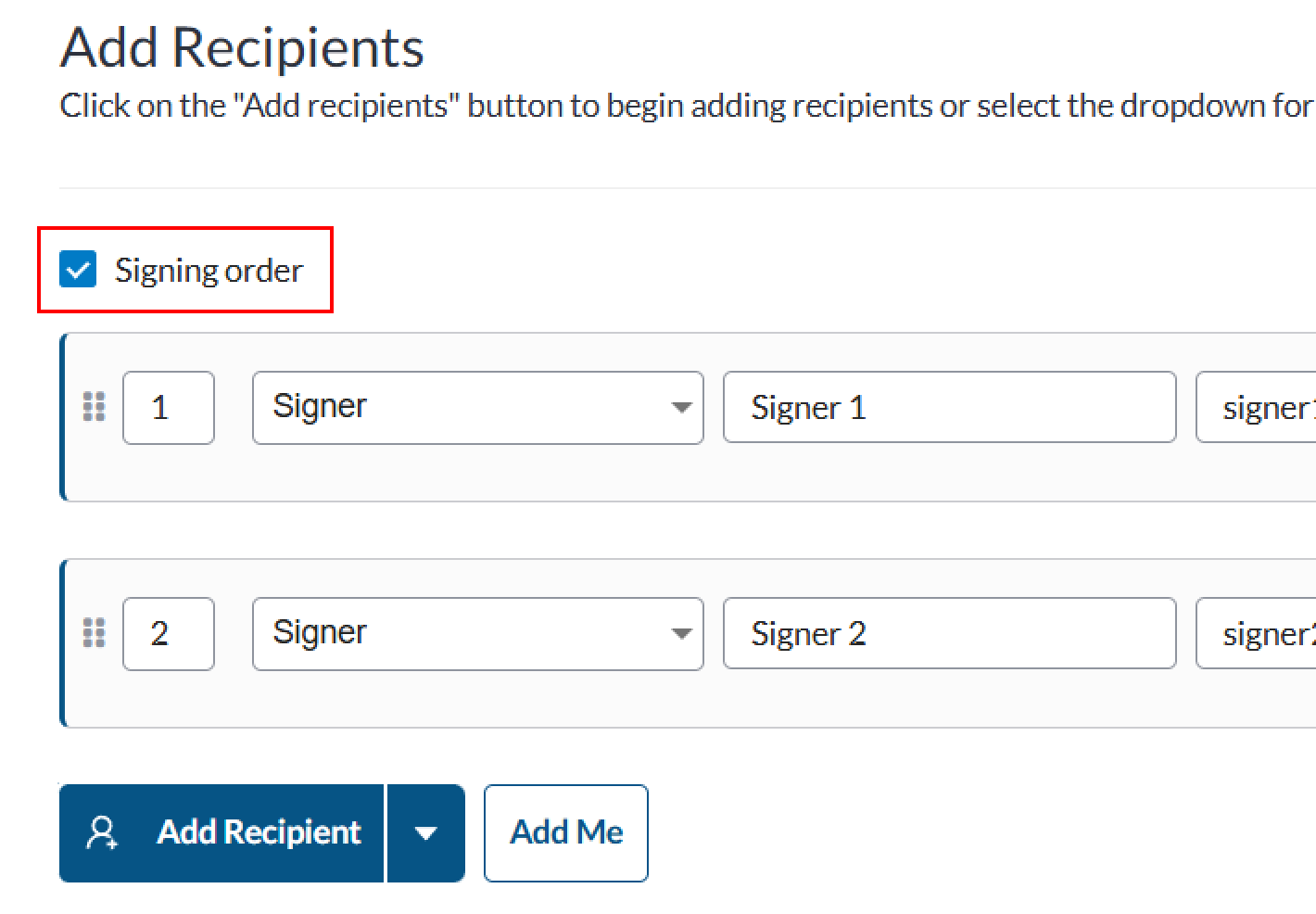
Select the Signing Order checkbox at the top right of the recipients list to create a sequence. The recipients signing order place will be displayed on the left end of the recipients row. By default, the recipients will be in the order in which you added the recipients.
-
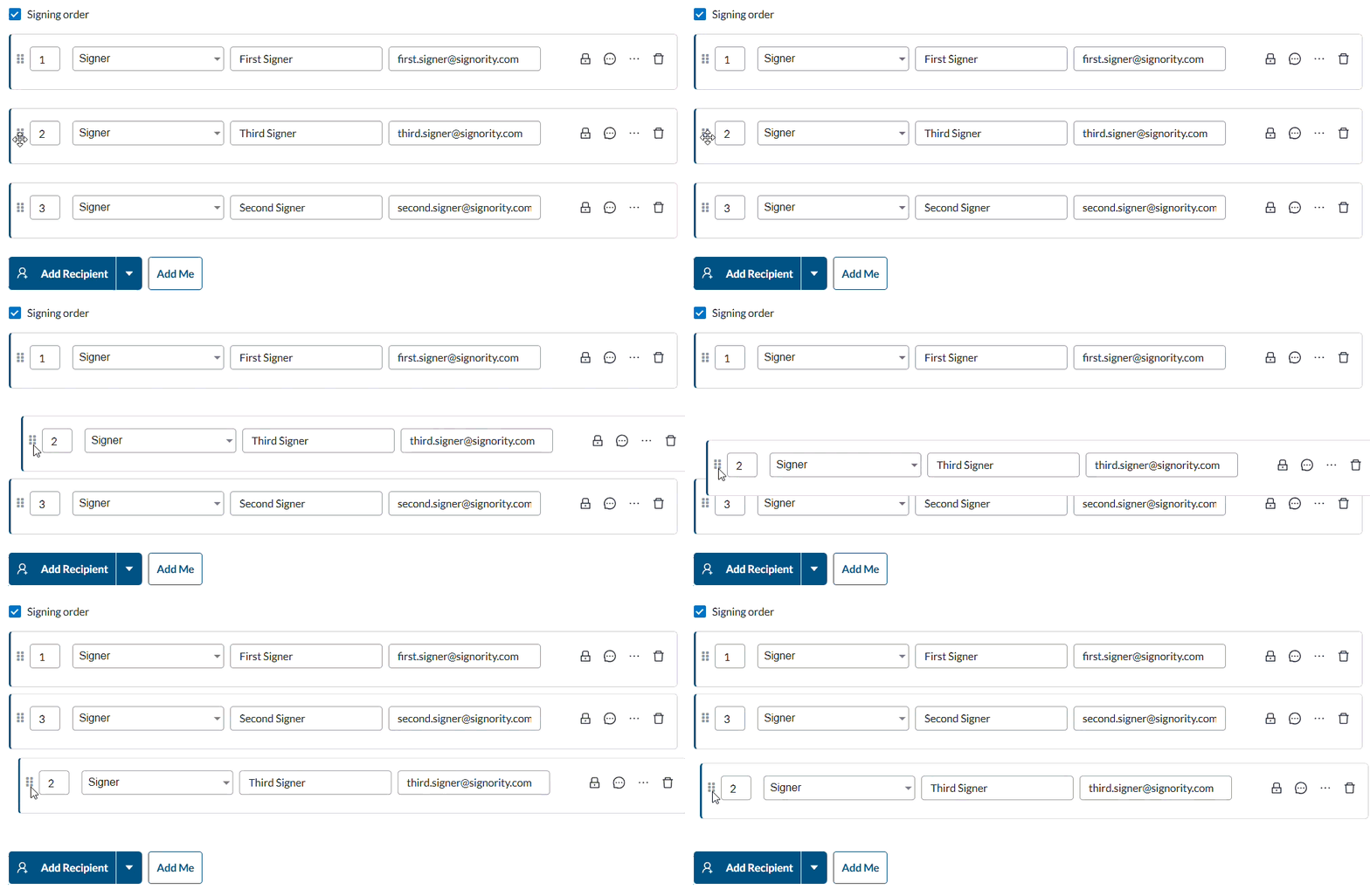
To change the order, you can either:
-
Drag the recipients in the correct order, or;
-
Set their signing order number manually by entering new values in the signing order input.
-
Tip: If you want multiple recipients to receive and sign the document at the same time, you can do so by manually typing the the same signing order number for each.
-
When you're done, if you are on the recipient page click Next in the move to the Editor page or if you are on the Recipients pop-up click Save in the bottom right.
Once you send the document for signature, invitation emails will only send after the previous recipient in the sequence completes their signing.
When a signing order is used, recipients who aren't able to sign yet will be listed as "Invitation not Sent" in the Recipient List Page.
Further Reading