

Private messages let you send a tailored message to an individual signer in their invitation email without changing what other recipients see. This message is send in the invitation email. Private messages are useful for providing signer-specific instructions, context, or reminders.
Important: A private message will override the general invitation message for that signer only. Other recipients will still receive the general message. If you have set a custom message as well, any recipients with a private message will not receive the custom message. If you want them to still see it, you will need to copy the message to be included in the recipients private message.
Want to customize a message for all signers instead? See Customizing Your Invitation Email.
Add a Private Message
You can add a private message for a specific signer from either the Recipients page or the Document Editor, depending on how you're working with your document.
When creating a new document, you can add a private message for each signer on the recipients page. If you missed this step or want to make changes later, you can do so in the document editor by returning to the recipients page by selecting the recipient step in the progress header above the document preview.
If you are working with a template or just want to modify the recipeints list from the document editor, you can access the recipients list by clicking Manage next to Recipients in the left panel of the Editor.
Once you see the recipients list you can add a private message following the steps below:
-
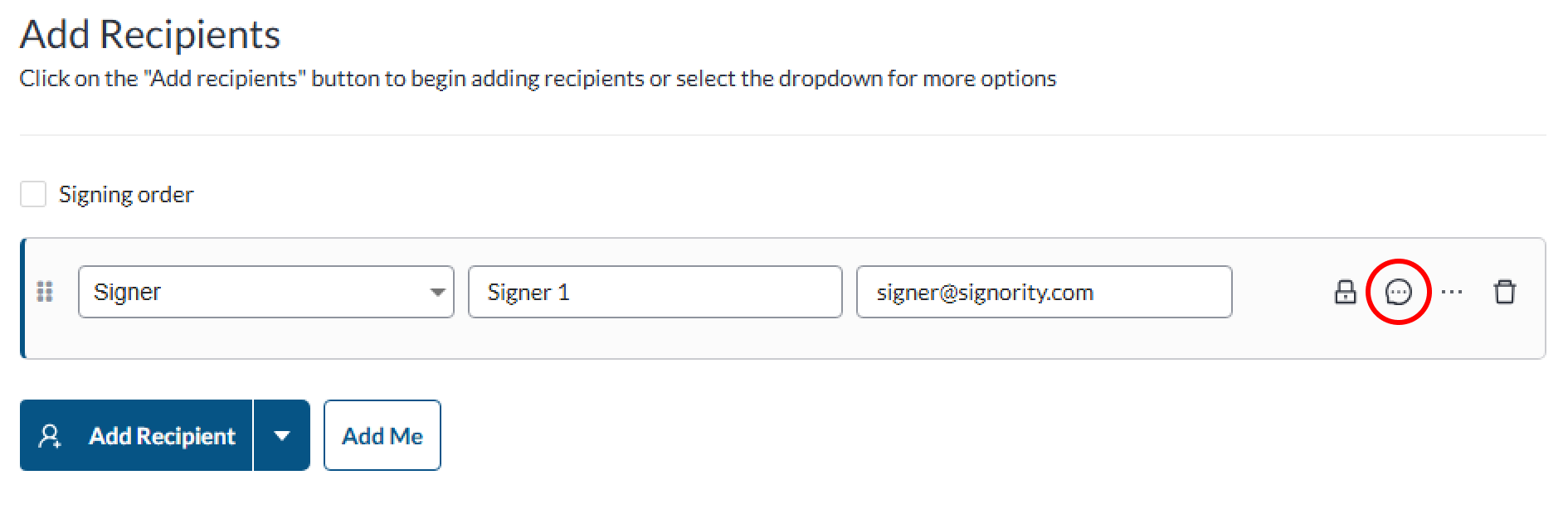
On the recipient's row for the recipient you wish to add a private message for, select the private message icon.
-
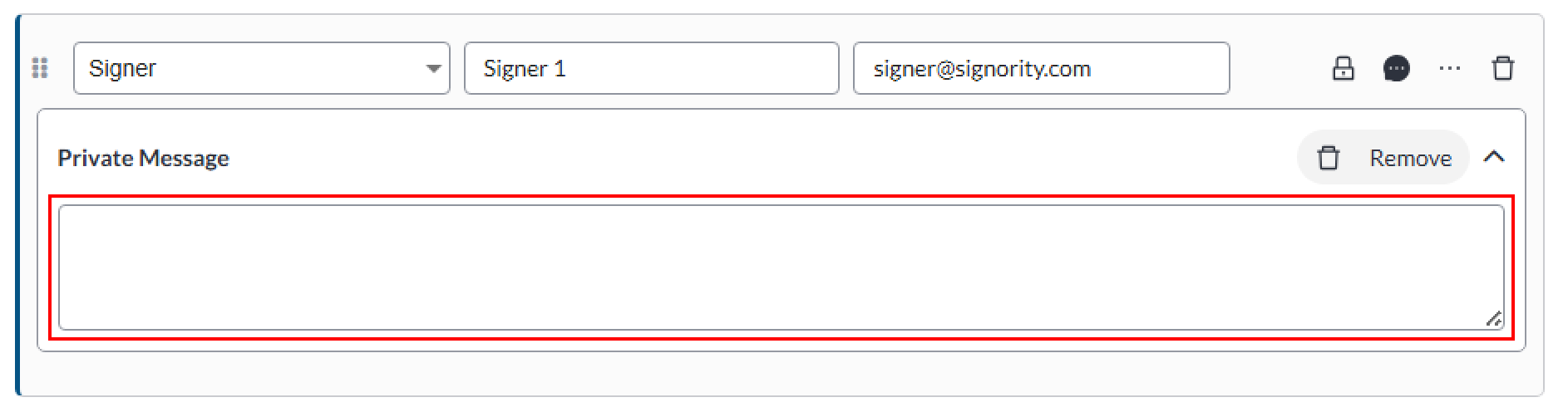
Enter your message in the Private Message panel that appears attached to that recipient.
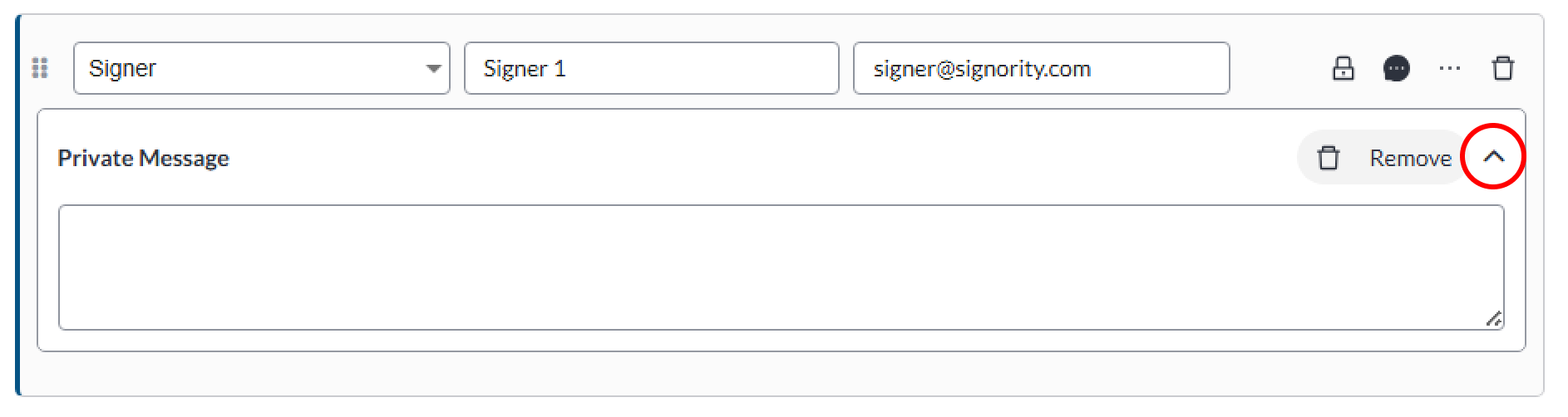
Tip: In the updated UI, if a private message is still enabled for that signer, collapsing the Private Message panel will only collapse the section. This allows you to quickly see which recipients have a private message configured. The section is only fully hidden if the Private Message is removed.
What the Invitation Email Will Look Like
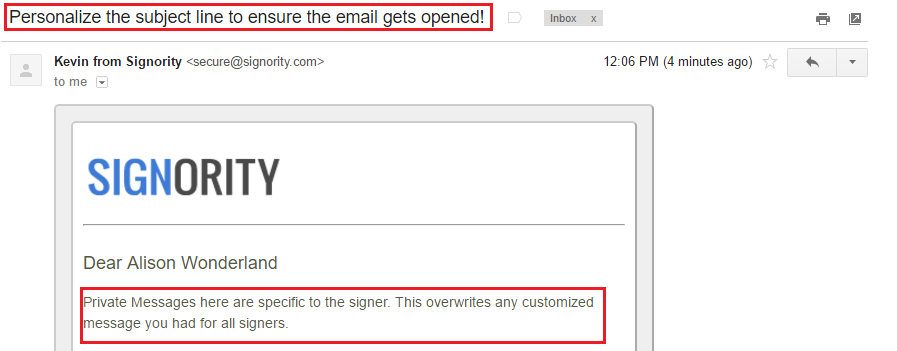
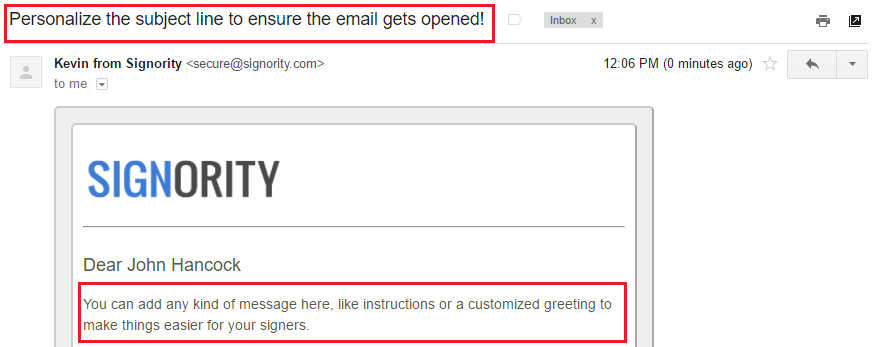
Here is an example of what the recipient with a private message will see in the invitation email:
This is what other recipients will receive if you also have a custom message:
Remove a Private Message
You can remove a private message from a recipient before sending the document.
-
Navigate to the recipients list either on the recipients page or the manage recipients pop-up on the editor.
-
In the recipient's row, select the Private Message panel to expand it.
-
In the private message panel, select the trash can icon.
Once a private message has been removed, that recipient will receive the same email invitation message as other recipients.