

As the host of an in-person signing session, your role is to guide each signer through the authentication and signing process. This workflow is slightly different from standard online signing because each in-person signer must verify their identity before signing.
-
Locate the invitation email to host the in-email notification and click Review Document.
-
Agree to the Terms of Use.
-
Hand the device over to the Signer and them complete all required fields in the document except for the signature field.
-
Once all other fields are filled out, instruct them to select the Signature tag to start the authentication process.
-
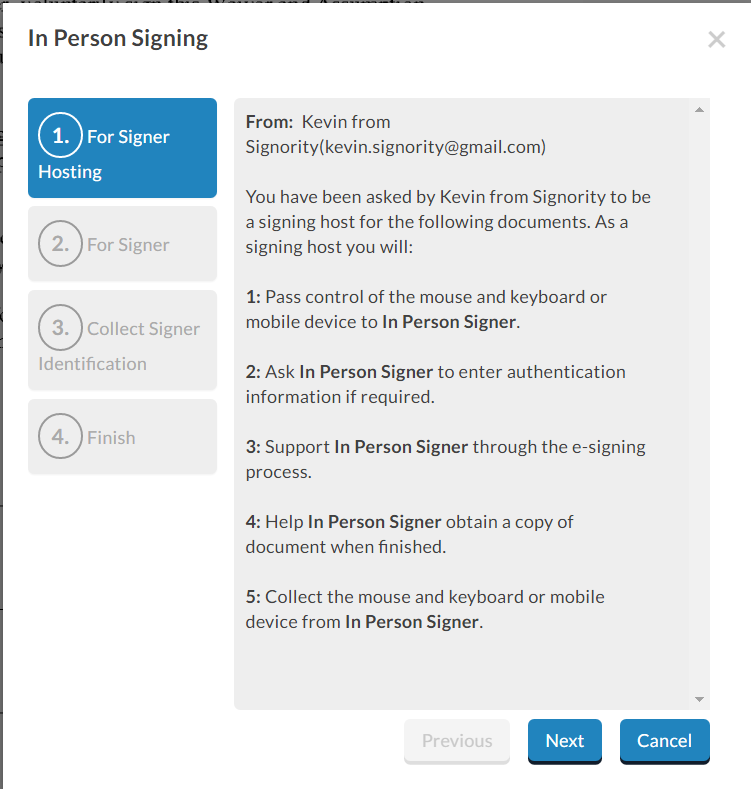
During authentication, the signer will need to:
-
Confirm that they are participating in an in-person signing
-
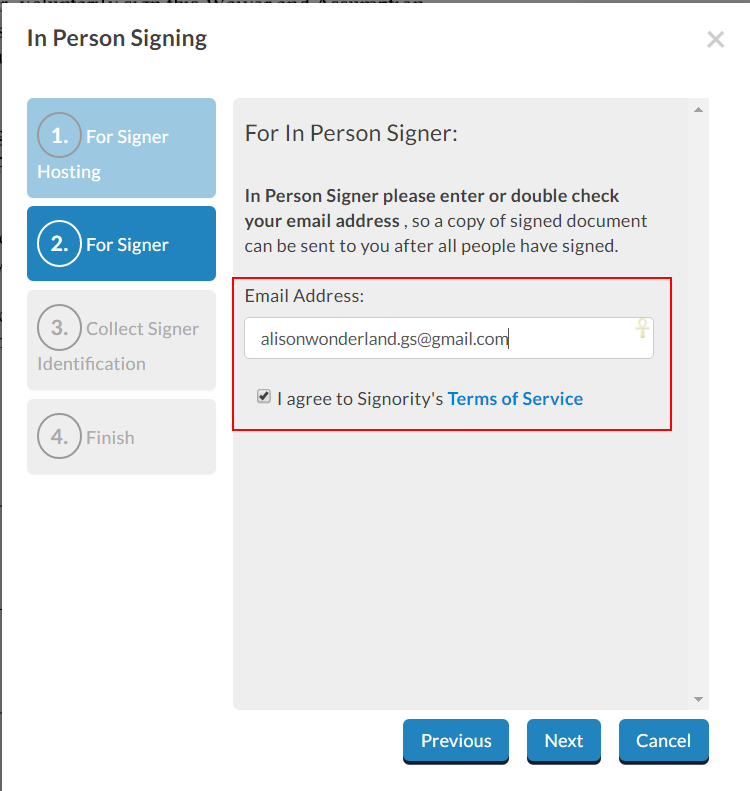
Provide their email address to receive the finalized document
-
Agree to the terms of service.
-
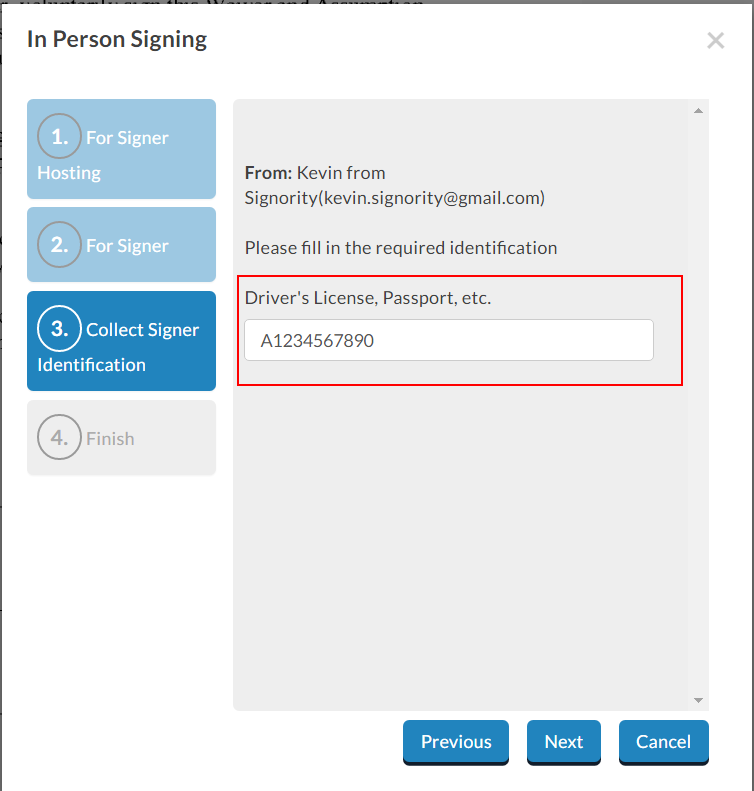
If ID authentication has been enabled, you’ll need to prompt the signer to enter the required identification details. This information will be recorded in the audit trail as proof of their identity.
-
-
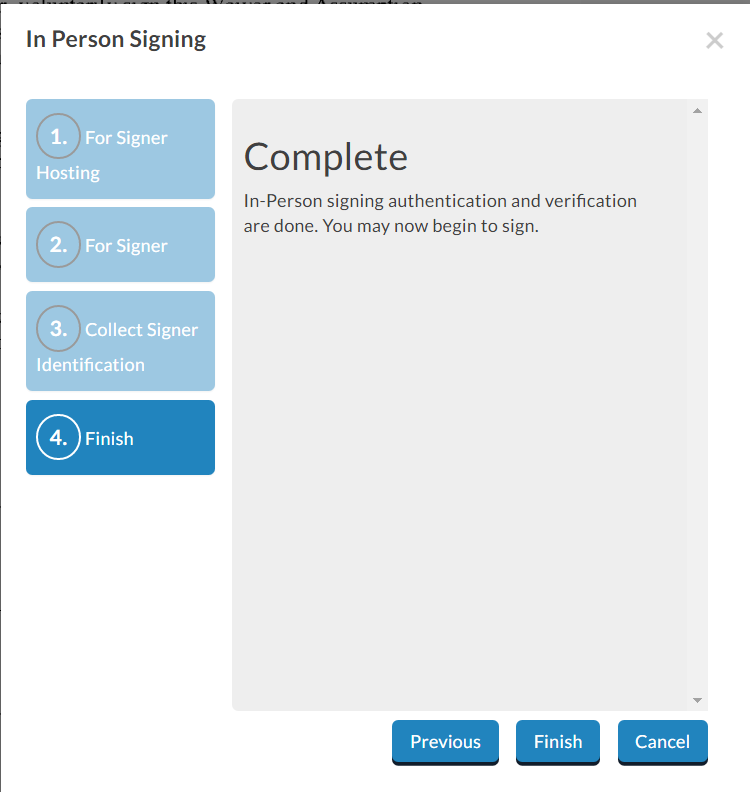
After all required information has been entered, guide the signer to click Finish to complete authentication.
-
Once this step is complete, they can proceed with signing and completing any remaining fields.
-
If multiple in-person signers are present, repeat this process for each individual.
-
After all in-person signers have finished, complete any remaining portions of the document as needed.
-
Click Finish in the top right to submit the document.
Once the entire process is complete, the finalized document will be received by all signers, including the in-person signer, as well as the sender.
Note: If the document includes additional remote signers, it will only be finalized once all parties have completed their sections.