

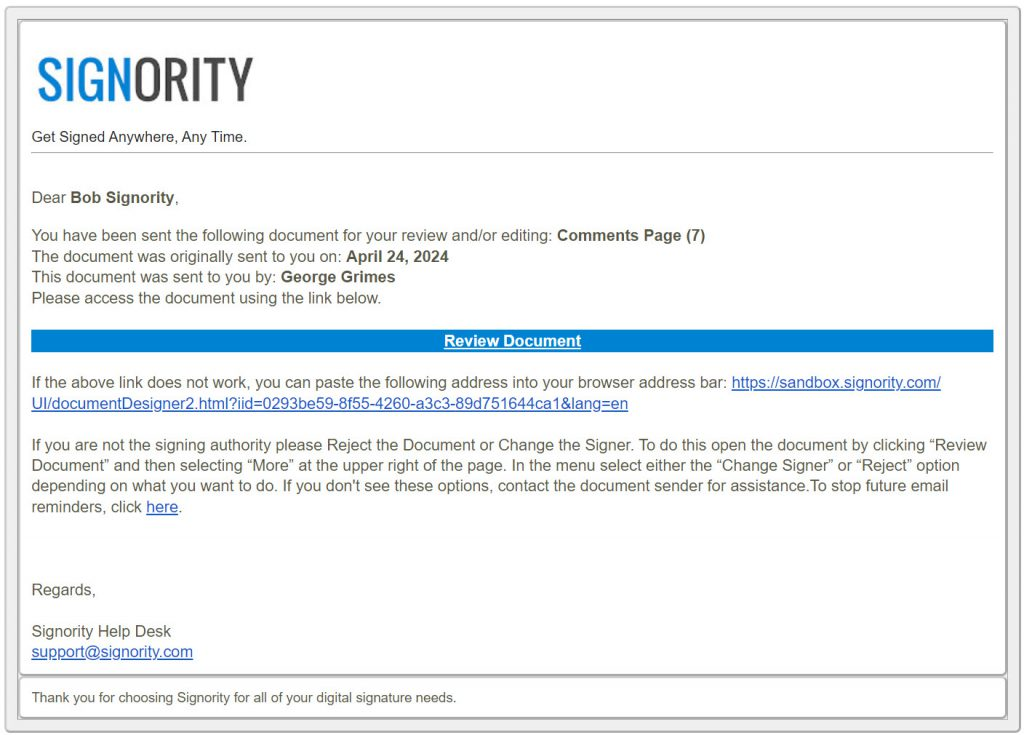
When a recipient is assigned the Editor role in an eSign workflow, they will receive an invitation email similar to other recipients. After opening the document package and accepting the Terms of Use, the Editor Recipient is directed to the Editor page instead of the signing page.
The Editor page allows the recipient to review and make authorized changes to the document package before it proceeds to the next step in the workflow.
How to Edit a Document as an Editor Recipient
-
Open the invitation email and select the link to access the document package.
-
Review and accept the Terms of Use.
-
The Editor page opens automatically.
-
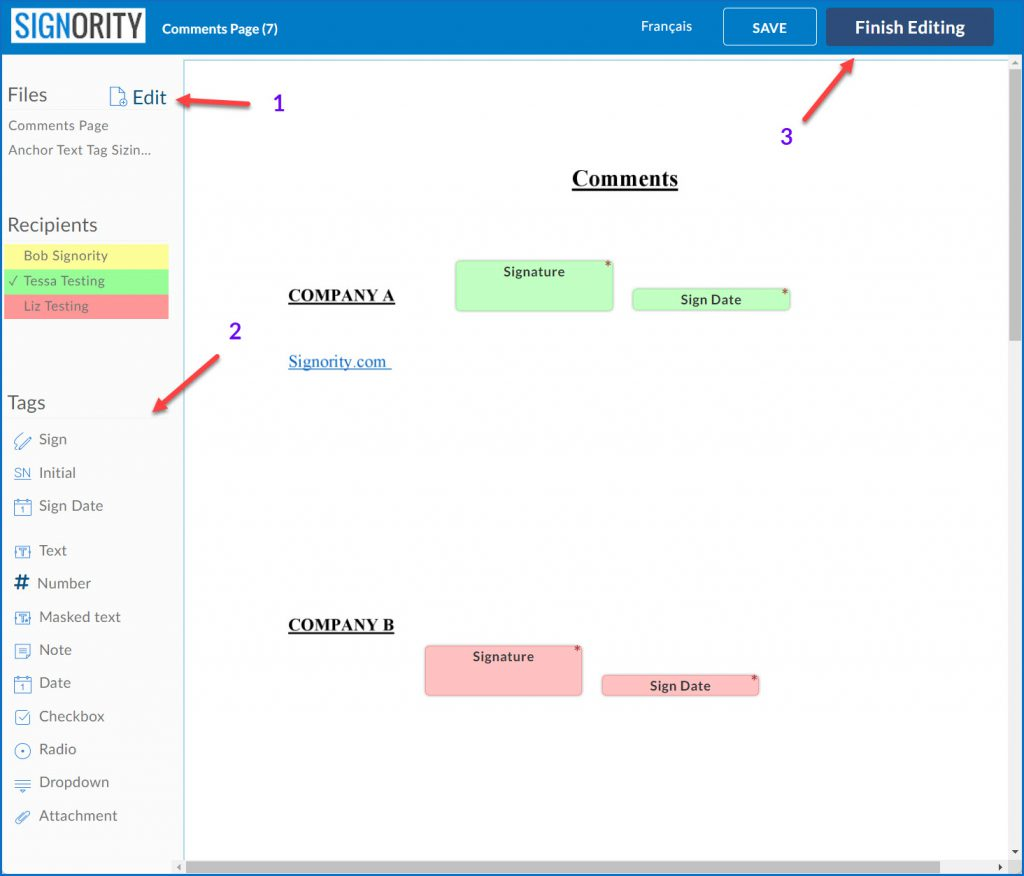
Make any required updates to the document package. As an Editor Recipient, you can perform the following actions:
-
Manage Files: Upload new files to the package or remove files if they are not needed. Follow the procedure described in the Managing Files in a Document Package guide.
-
Manage Recipients: Add, remove recipients, reorder, and modify any of the remaining recipients in the workflow. Follow the procedures described in Add and Manage Recipients.
-
Modify the Documents Tags: Add, remove, and replace tags as needed. Follow the procedures described in the Add Tags to a Document guide.
-
Note: Editor Recipients can modify document content and recipient-related settings, but they cannot modify overall document settings. They also can not removed or modified Encrypted Stamp tags or recipients.
-
After completing your changes, review the updated document package.
-
Select Finish in the top write to submit your changes and continue the document workflow.
The document package will be sent automatically to the next recipient in the signing process. When they receive it, the document package will have been updated with the Editor Recipient's changes.