

If you've been asked to sign a document as a witness, you'll need to verify your identity before you can provide your signature. This extra step helps confirm that you are the individual acting as the witness and ensures the signing process remains secure and legally compliant.
As a witness, you must be physically present with the signer when the document is being signed. Before you can access the witness signature field, you'll be guided through a short authentication process. Depending on the requirements set by the sender, this may include verifying your email address, mobile phone number, or identification information.
This article explains how to complete the witness authentication process and successfully sign the document.
How to Sign and Witness a Signature
Step 1: Start the Signing Process
-
Start the signing process as usual with the main recipient opening the document and agreeing to the terms of service.
-
The witness should then complete their assigned fields first excluding any signature tags.
-
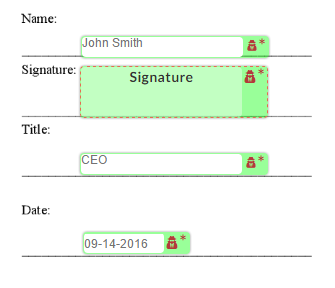
When ready to sign, select the witness signature tag to begin the authentication process.
Step 2: Completing Witness Authentication
When you selects the signature field, you will be prompted to authenticate your identity.
-
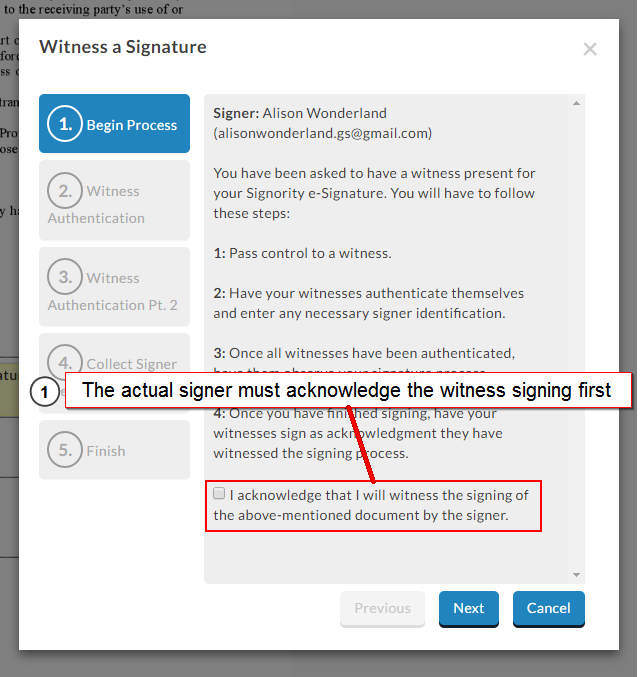
In the Witness a Signature pop-up window, select the checkbox to acknowledge that you are signing as the specified signer's witness.
-
When prompted, enter your full name and email address.
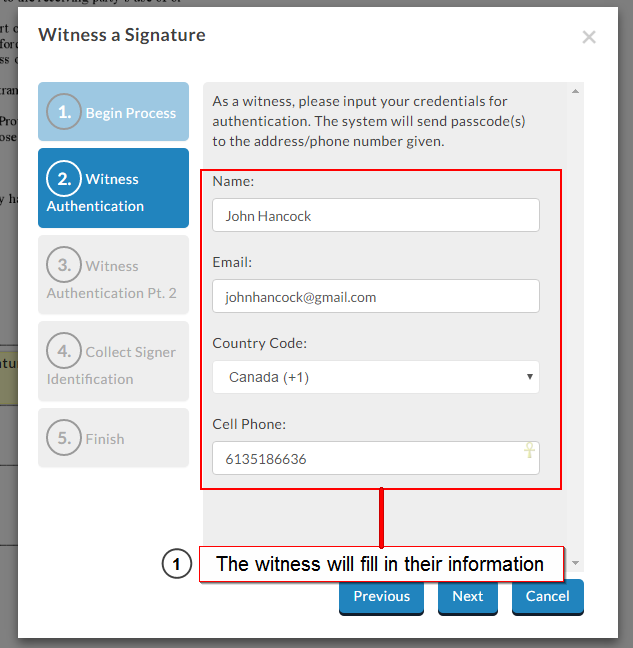
Note: If SMS authentication is enabled, you must also provide your mobile phone number.
-
Depending on the authentication methods selected by the sender, the witness may need to complete one or more of the following verification steps:
-
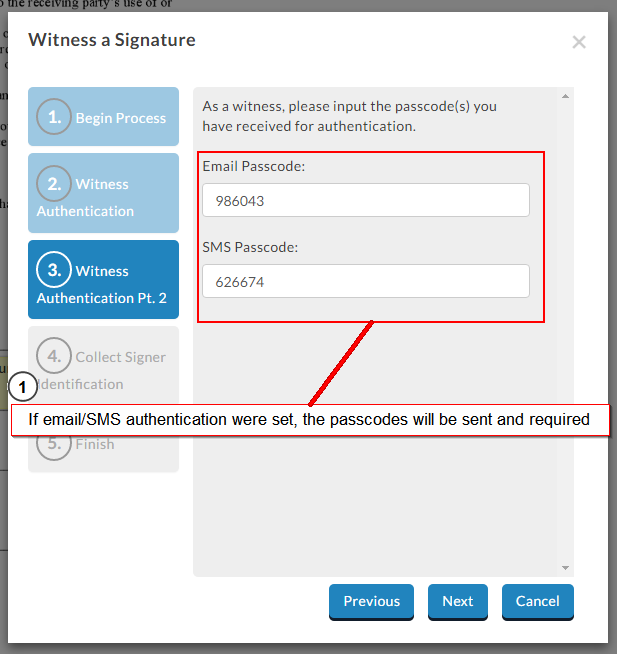
Email and/or SMS Verification: A passcode will be sent to the email address and/or mobile number entered in the previous step.
-
Retrieve the passcode(s).
-
Enter the passcode(s) when prompted.
-
Continue to the next step.
-
-
ID Verification: If ID authentication is required, the witness must provide the requested identification information. This is typically a government-issued ID, such as:
-
Driver's licence number
-
Passport number
-
-
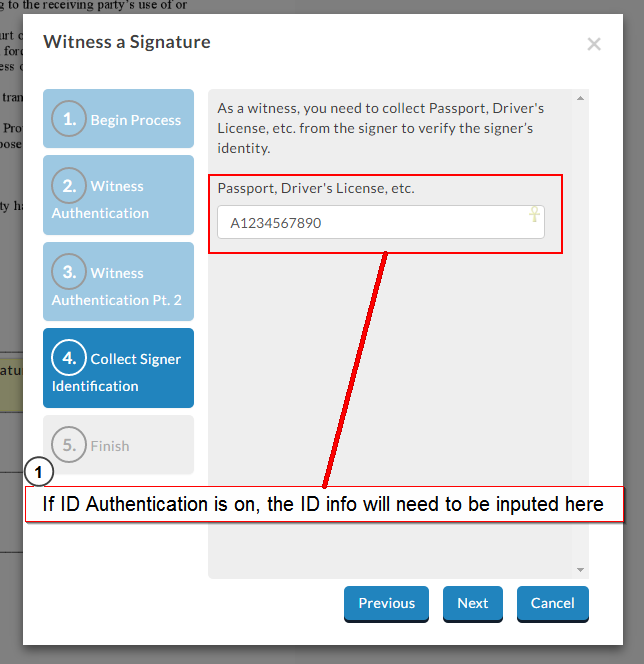
Note: The sender may also request other identifying information that can be used to verify the witness's identity. The information provided will be recorded in the audit trail as proof of identity.
Step 3: Sign the Document
After authentication is complete:
-
Select Finish to close the Witness a Signature window.
-
When the page reloads, the witness signature field will become available for the witness to sign.
-
Once the witness has signed, control can be returned to the original signer so they can complete the remaining signing steps.
Step 4: Witness
Witness the main signer’s signature as they complete their tags and submit the document.