

By default, if a recipient rejects the document, Signority will automatically continue the workflow by sending the document to the next recipient. You can change this behavior to cancel the document instead, with optional email notifications.
Note: This setting can only be configured by Billing and Super admins in Global settings.
Configure Rejection Behavior for Signing Workflows
-
From the user dashboard, clicking Admin at the bottom of your left hand sidebar menu.
-
From the admin console, navigate to Global Settings or Team Settings.
-
Jump to the Signer Options section by selecting the Signer Options tab.
-
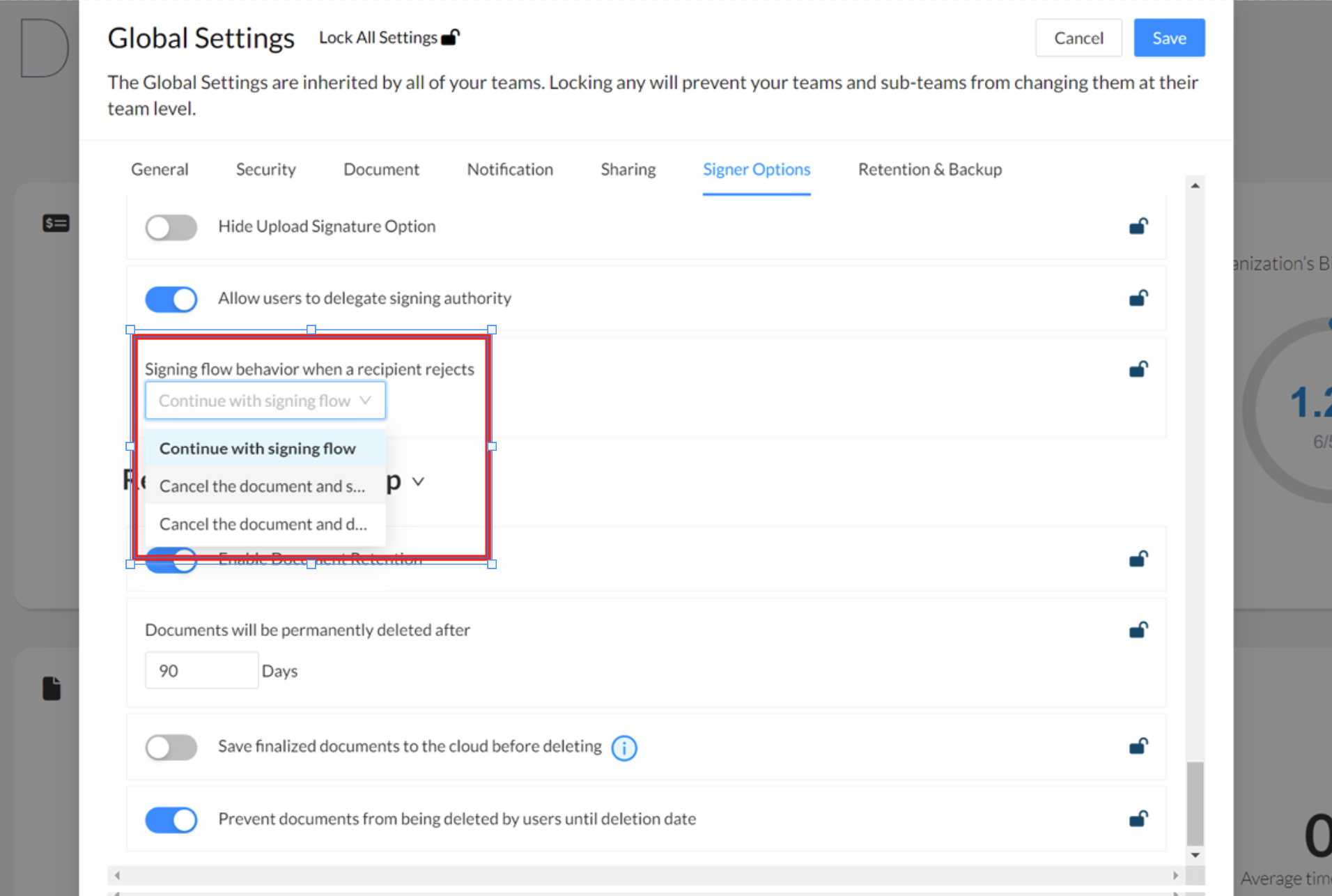
Select the dropdown under Signing flow behavior when a recipient rejects.
-
Choose what workflow you would like to happen if a recipient rejects the document:
-
Continue with signing flow (default)
-
Cancel the document and send an email notifying the signers
-
Cancel the document and do not send an email to the signers
-
Note: If you choose to cancel the document, the workflow stops immediately and the remaining recipients will not receive the document. The cancellation reason is automatically recorded as: "Rejected by {{recipient email}}".
-
Select Save in the top right of the pop-up to apply this change.