

Note: Billing, Super, and Team admins have the ability to add a user.
-
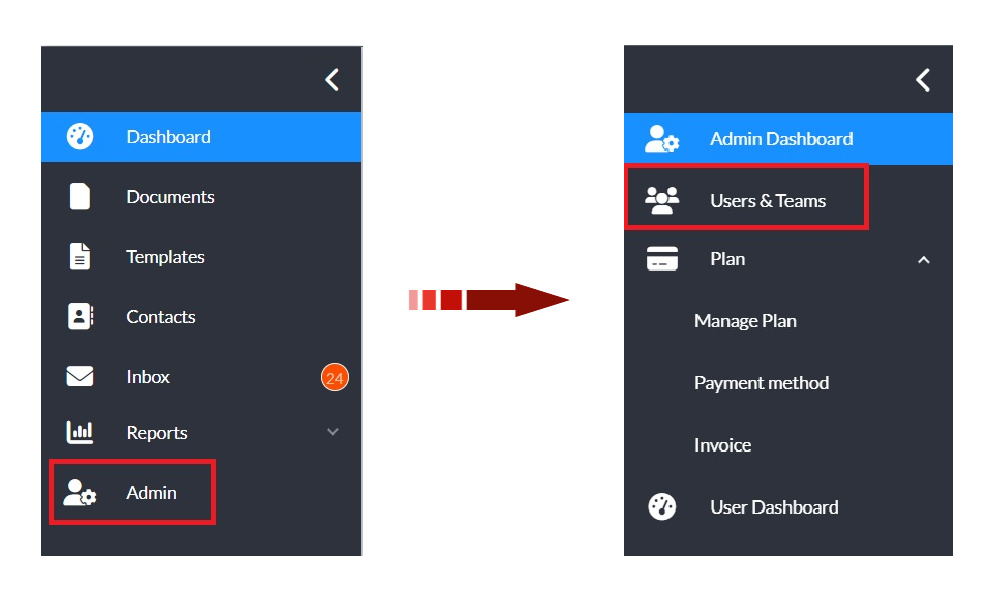
In the left navigation panel, click Admin to open the admin console.
-
Select Users & Teams in the updated navigation panel.
-
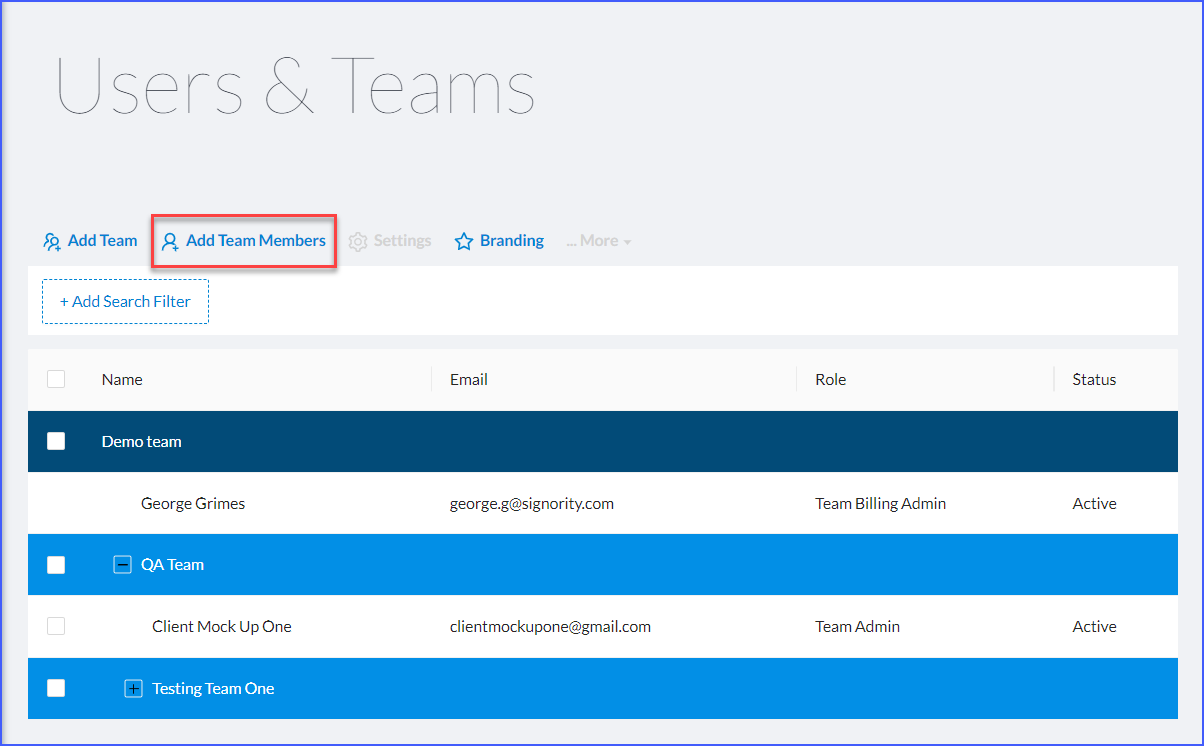
In the top left, select Add Team Member.
-
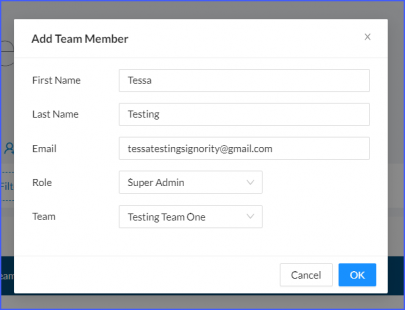
In the pop up window, enter the user’s details:
|
Settings |
Description |
|---|---|
|
First Name |
Enter the user’s first name. |
|
Last Name |
Enter the user’s last name. |
|
|
Enter the user’s email address. |
|
Role |
Select the appropriate role within the team. New users are assigned the default regular user role unless changed. |
|
Team |
Choose which team to assign them to. |
Want to add them to a new team? View our Add a Team tutorial.
-
Click OK.
You will see your new team member appear in the team that you have assigned them. Their status will be Pending until they accept the invitation to join the platform.
Note: When you add your team member the page may refresh and automatically collapse the team tree, you may have to expand the team rows to see the team member.