

When a user changes roles within your organization or leaves the company, you may need to de-activate the user from your account.
Before a user can be removed, all documents in their account must be handled first. To do this you have two options.
Tip: Enabling a Document Retention Policy can help reduce the number of documents you need to manage.
See: Document Retention & Backup for more details.
After their documents have been deleted or transferred, you can then process with deleting the user from your account.
How to Deactivate a User
-
In the left navigation panel, click Admin to open the admin console.
-
Select Users & Teams in the updated navigation panel.
-
Locate the users whose account you want to de-activate.
-
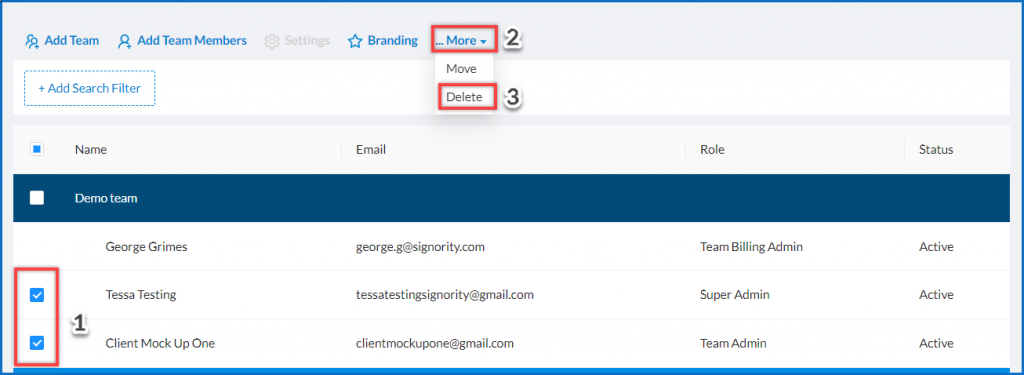
Select the checkbox next to the user.
-
In the action bar menu above the search filters, click More > Delete.
-
In the confirmation modal, click OK to deactivate the user.
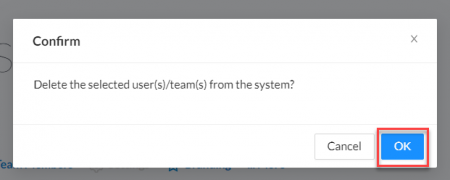
The user will be removed from the user list once deactivated.
Viewing Deactivated Users
To view users who have been deactivated:
-
Go to Users & Teams
-
Select the Filter icon next to the Status column.
-
Select Deactivated users.