

-
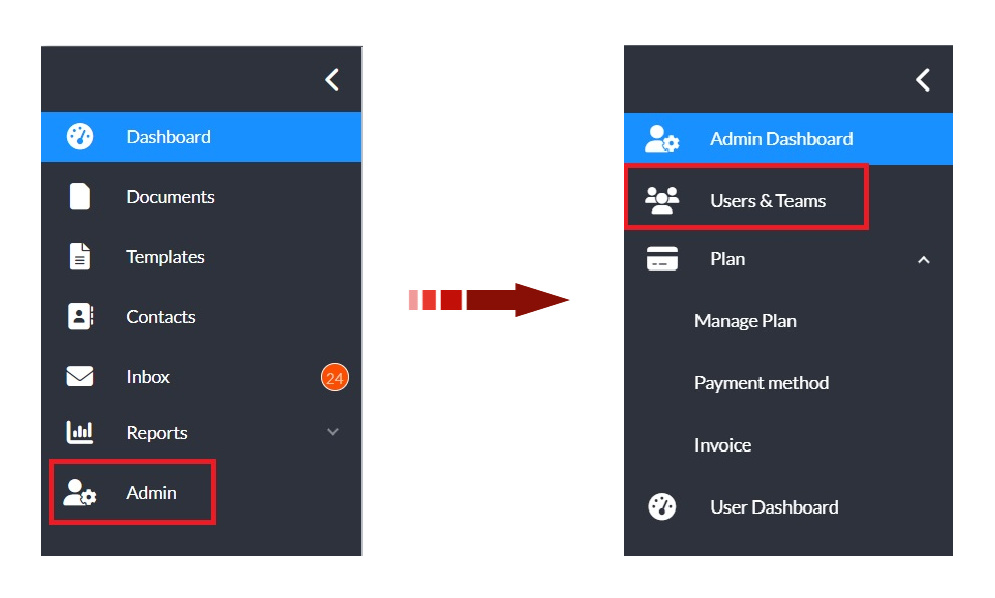
From the user dashboard, navigate to the Admin Console by selecting Admin on the left sidebar menu.
-
In the Admin view, select Users & Teams on the revised side menu.
-
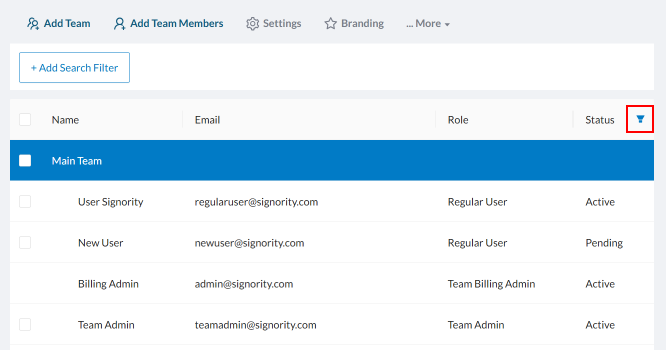
Select the filter icon next to the Status column.
-
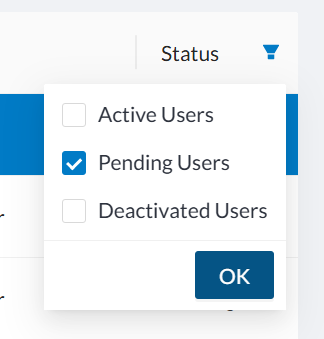
In the dropdown unselect all the checkboxes except for Pending Users.
-
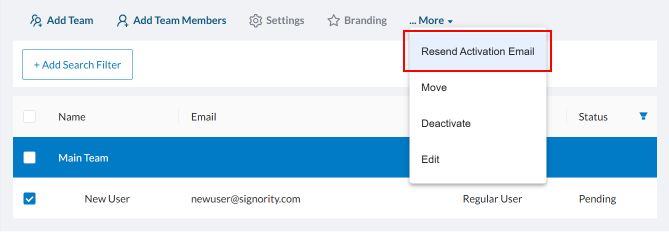
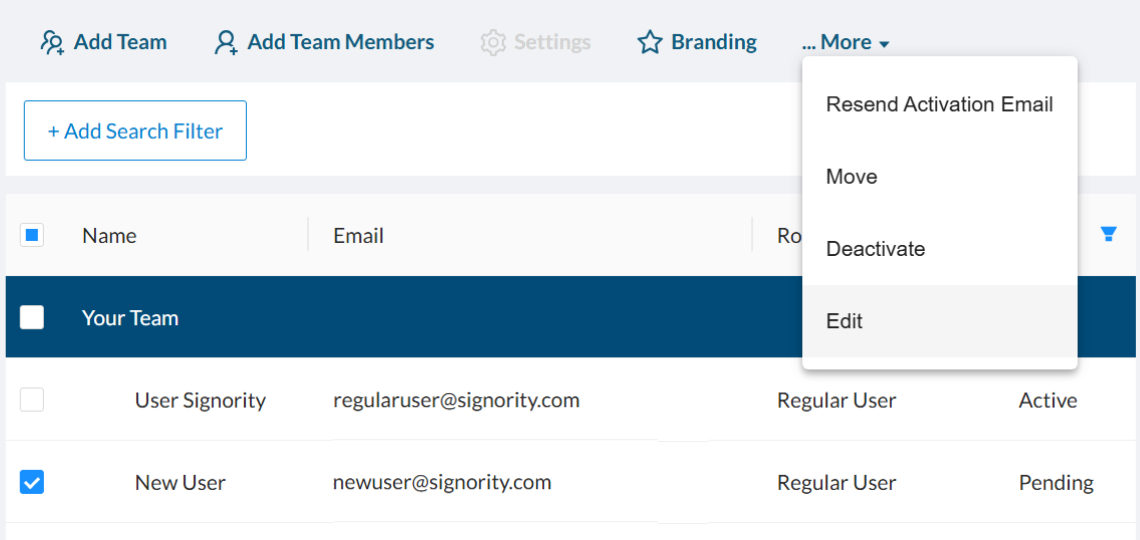
Select the the checkbox next to the user you would like to resend the invite to.
Need to update the user’s email address before resending? See how here.
-
In the action bar above the table, click More > Resend Activation Email.
-
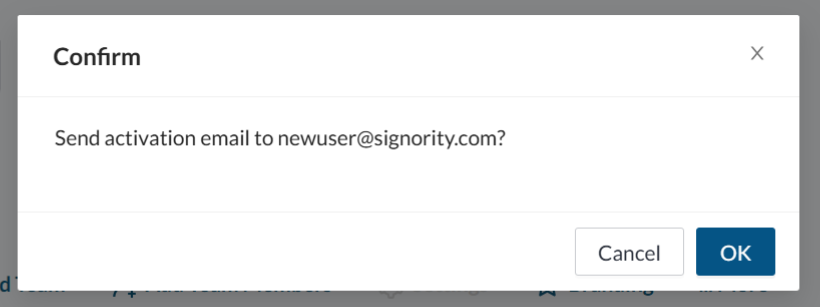
In the confirmation pop-up, click OK to resend the activation email.
Change a User's Email Before Resending
If the invitation needs to be sent to a different email address:
-
On the Users & Teams page, select the checkboxnext to the user.
-
In the action menu above the table, click More > Edit.
-
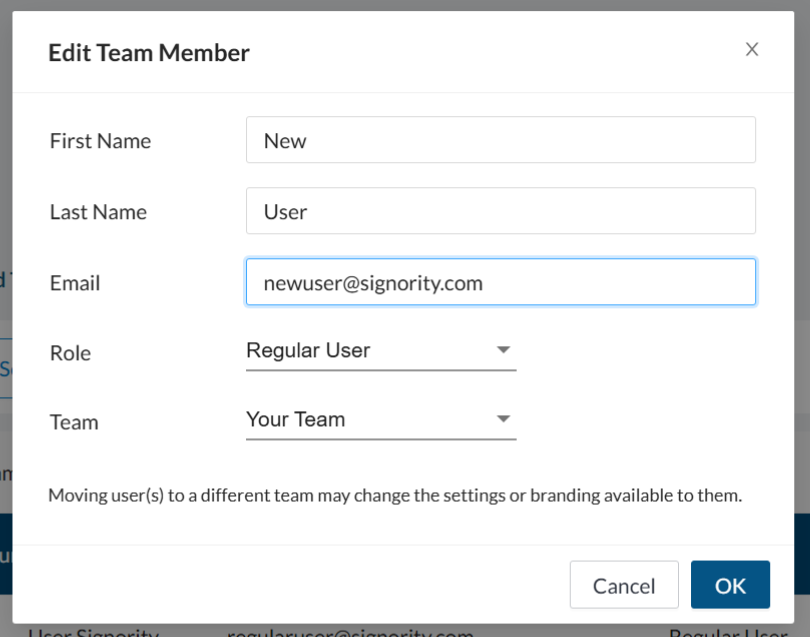
In the pop-up, update the user’s email address (or other details as needed).
-
Click OK to save your changes.
-
Return to the steps above to resend the activation email.