

Signority provides multiple download options to suit different needs—whether you want a single combined PDF, separate files, or a complete audit trail. This guide will walk you through each option.
How to Download a Document as the Sender
-
Log in to Signority.
-
From the User Dashboard, select Documents from the left navigation menu.
-
Locate the document you want to download.
-
Click the vertical three-dot (︙) icon at the end of the document row.
-
Select Download from the dropdown menu.
-
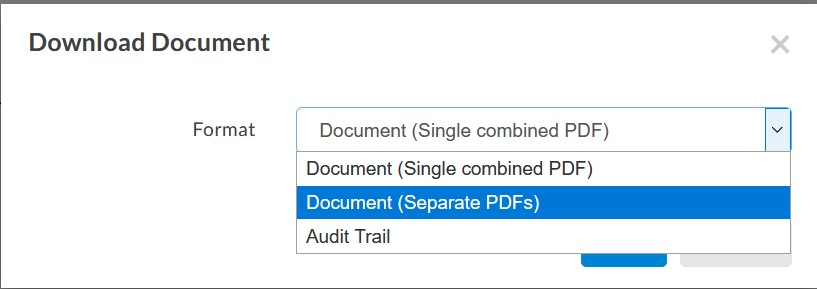
In the download popup, you can use the dropdown to select how you would like to download the document. You can chose to download as:
-
Single Combined PDF: Downloads the entire document as one single PDF file. If multiple files made up the document package, all uploaded files are merged together in order. You can also choose to combine the audit trail and digital certificate (if applicable) in the merged PDF by enabling “Merge finalized document and audit trail into a single PDF” in your accounts profile settings.
-
Separate PDFs: Downloads a ZIP file containing each file as its own individual PDF. Each original file remains separate, even after signing.
-
Audit Trail: Downloads a PDF containing the audit trail only.
-
-
Click OK.