

When a user’s documents need to be reassigned—whether due to a role change, account cleanup, or user removal—you can transfer ownership of those documents to another user in Signority. This ensures important documents remain accessible and managed within your organization.
Transfer Documents to Another User
-
From the user dashboard, navigate to the Admin Console by selecting Admin on the left sidebar menu.
-
In the admin console, select Users & Teams from the updated left sidebar menu.
-
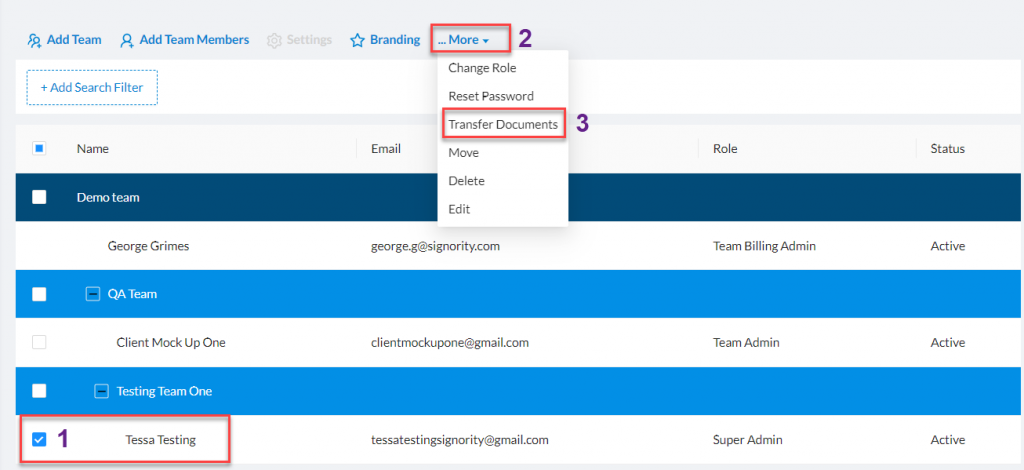
Locate the user you want to transfer documents out from and select the check the box beside the user's name.
-
In the action menu above the Users & Teams listmenu, select Select More > Transfer Documents.
-
In the Document Transfer pop-up window, select a user to transfer the documents to in the Recipient drop down menu.
-
Select OK to transfer the documents.
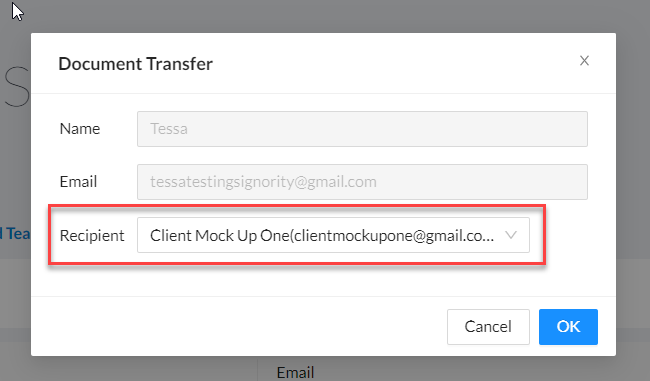
All documents will be transferred from the selected user to the recipient.
Further Reading