

One of the greatest advantages of electronic signature platforms is the ability to track and monitor the status and history of any document in progress. A document status tracker is essential for identifying bottlenecks in the signing process and knowing exactly who to follow up with.
Document Status and History Page
The document status and history page consists of three main pages:
Document Information
The Document Information section provides an overview of key details about the document, including:
-
Document ID
-
GUID
-
Name
-
Creation Date
-
Expiration Date
-
Current Status
Recipient List
The Recipient List provides deeper insight into a document’s progress by breaking it down by recipient. It shows all individuals involved in the document and their associated details, including:
-
Name
-
Email Address
-
Action (Recipient Type)
-
Authentication Type (if applicable)
-
Individual Status
Recipient statuses may include:
-
Waiting to be Opened
-
Viewed
-
Finalized
You can also perform quick actions from this section, such as:
Document History
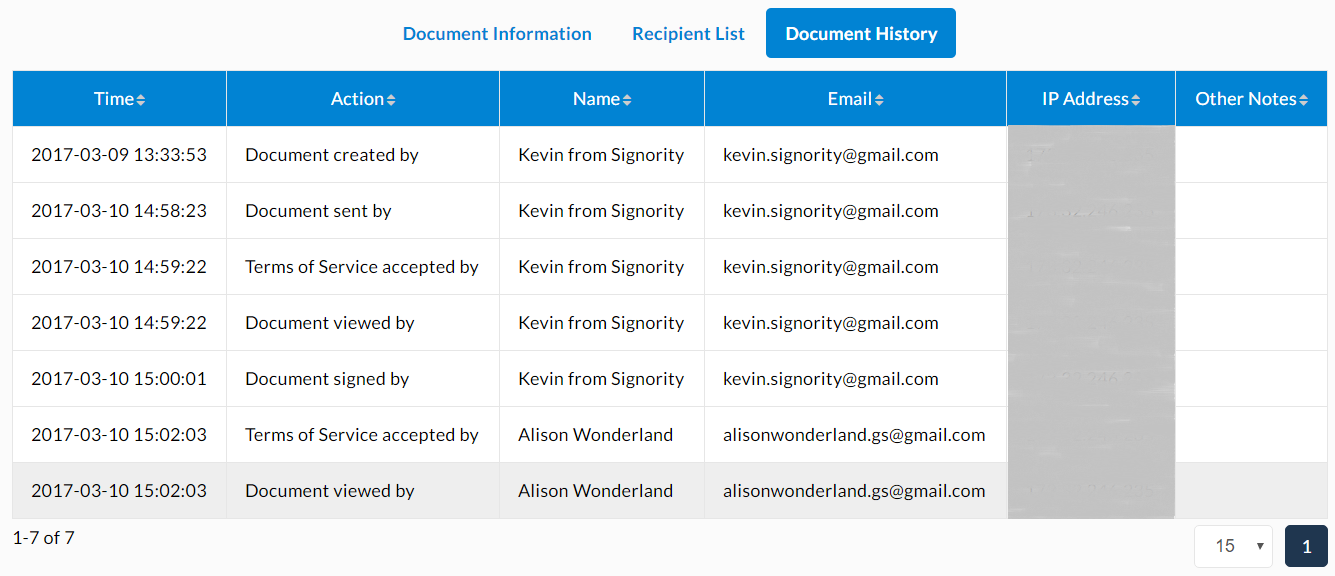
The Document History page provides a detailed audit trail of all document activity, including:
-
The timestamp of each action
-
The email address and IP address of the person accessing the document
-
The actions performed by each recipient
-
Other notes can include information like page view evidence, witness signing, and authentication factors used.
Note: All information recorded in the Document History is automatically included in the completed document PDF as an audit trail. To learn more, see What is an Audit Trail.
How to Access the Document Status and History
To access these sections:
-
Navigate to the Documents page using the dashboard’s navigation bar.
-
Locate the document you want to review.
Once you’ve found the document, you can access its status and history in several ways:
-
Click the recipient’s email in the Recipients column to go directly to the Recipient List for that document.
-
Click the status in the Status column to open the Document History.
-
Click the vertical three-dot (︙) menu at the end of the document row and select View Status and History from the dropdown. This will also take you to the Document History page.
After accessing either the Recipient List or Document History, you can switch between sections using the available tabs.
Note: The Document Information section is only accessible from within the Recipient List or Document History pages via these tabs.