

Create a New Folder
-
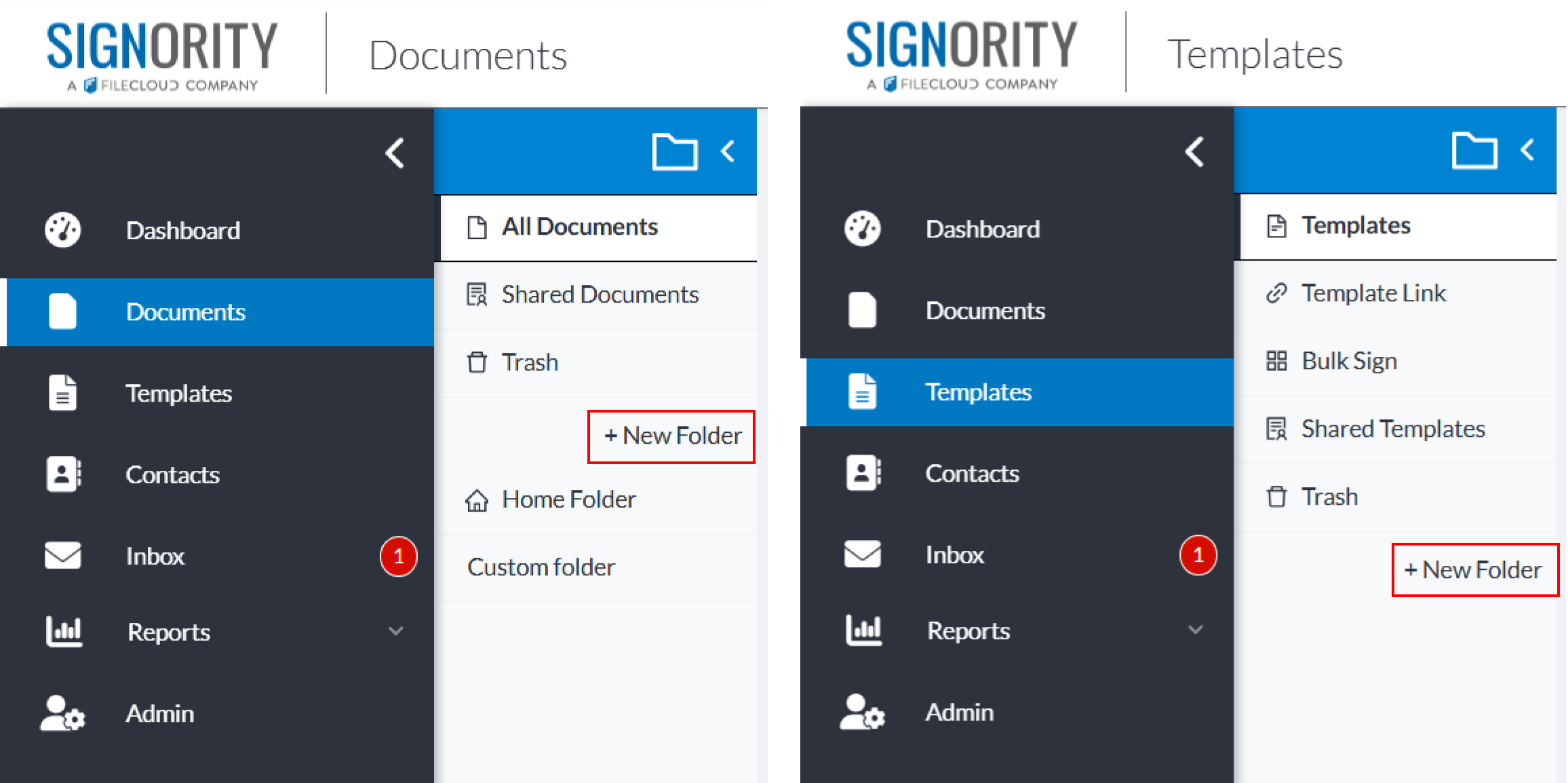
Using the left navigation folder, navigate to:
-
Documents, or
-
Templates
-
-
In the secondary side menu, click on + New Folder.
-
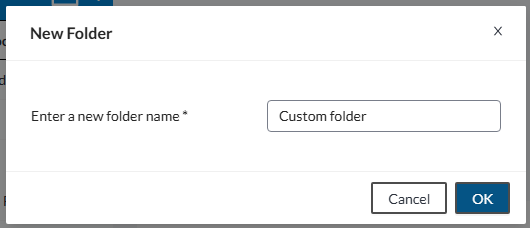
In the New Folder window, enter a name for the folder.
-
Click OK to create the folder.
Once done, your new folder will appear:
-
Under your Home Folder on the Documents page, or
-
Below the + New Folder button in the Templates section
Add a Documents/Templates to a Folder
-
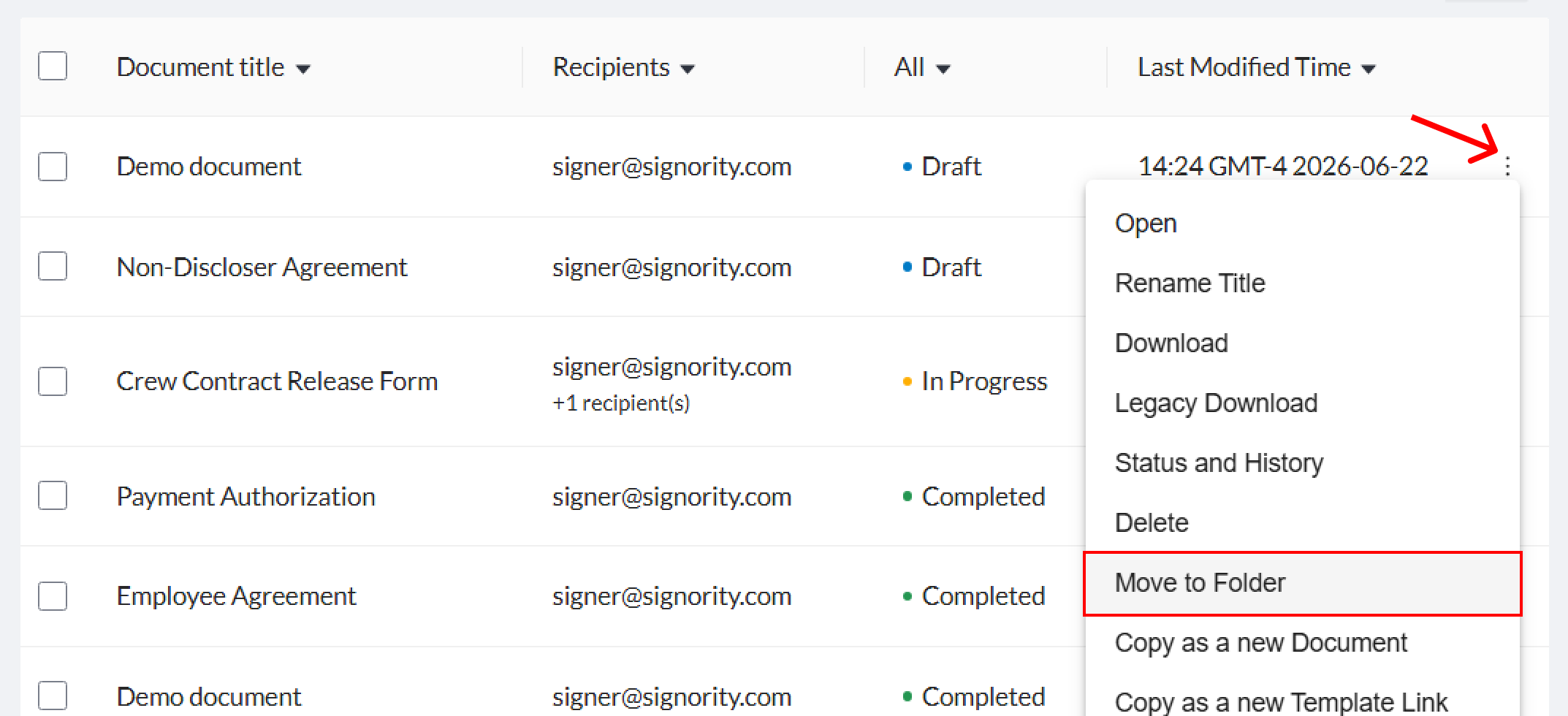
Locate/search for the document or template you wish to move.
-
Click the vertical elipses (︙) icon at the end of the documents row.
-
Select Move to Folder.
-
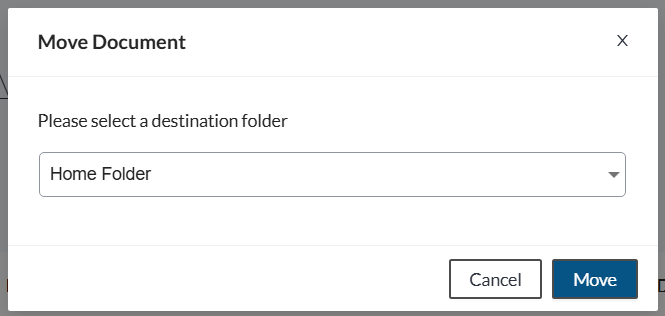
In the pop-up window, use the dropdown to select which folder you wish to move the folder to.
How to Rename or Delete a Folder
-
Hover or select the folder you wish to rename or delete
-
Click on the edit icon that appears to the right of the folder name
-
Select Rename or Delete from the dropdown menu