

After sending a document for signing, you may notice the document was sent to the wrong signer or that you entered the wrong email address. Signority allows you to change signers and resend the invitations to the new email address for documents that are still in progress.
What Recipient Information Can Be Changed?
After sending a document, you can update the following recipient details:
-
Name
-
Email address
-
Role (limited to changing the recipient to a Viewer only)
Update or Change a Recipient
-
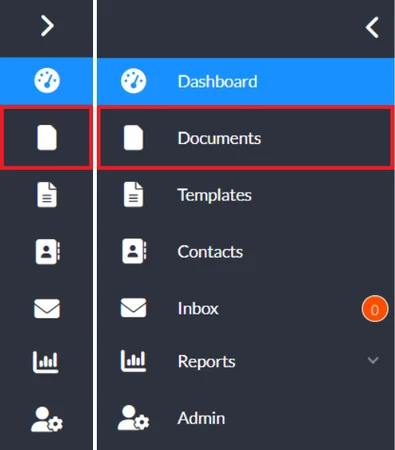
From the Dashboard, select Documents from the left navigation menu.
-
Locate the document you wish to change the recipient for and click the recipient’s email under the Recipients column.
-
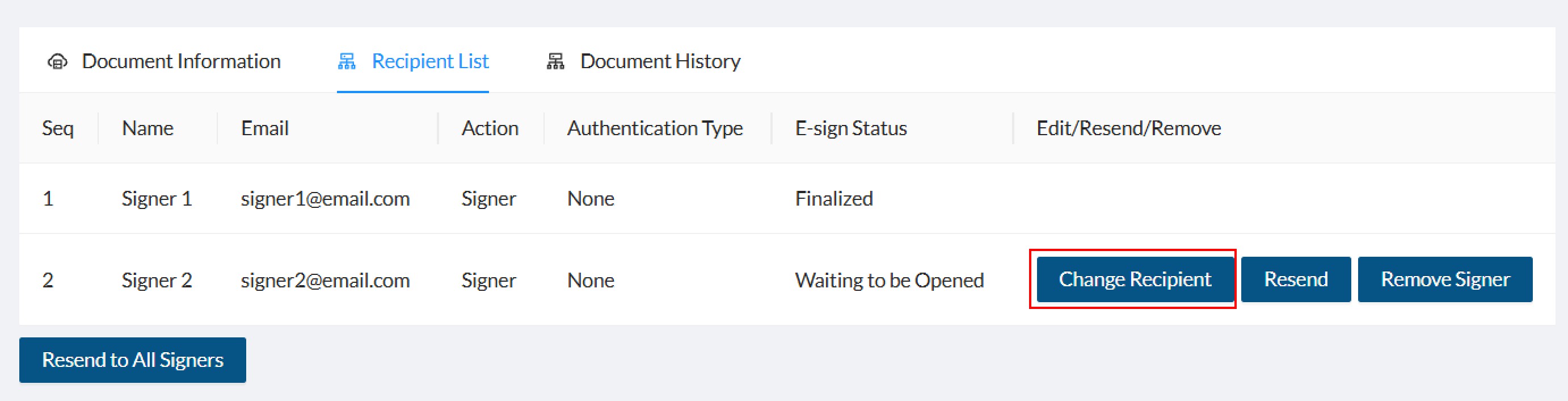
On the Recipient List page, click the Change Recipient next to the recipient you want to update.
-
In the Edit Recipient Information pop-up window, update the recipient’s name, email address, or role as needed.
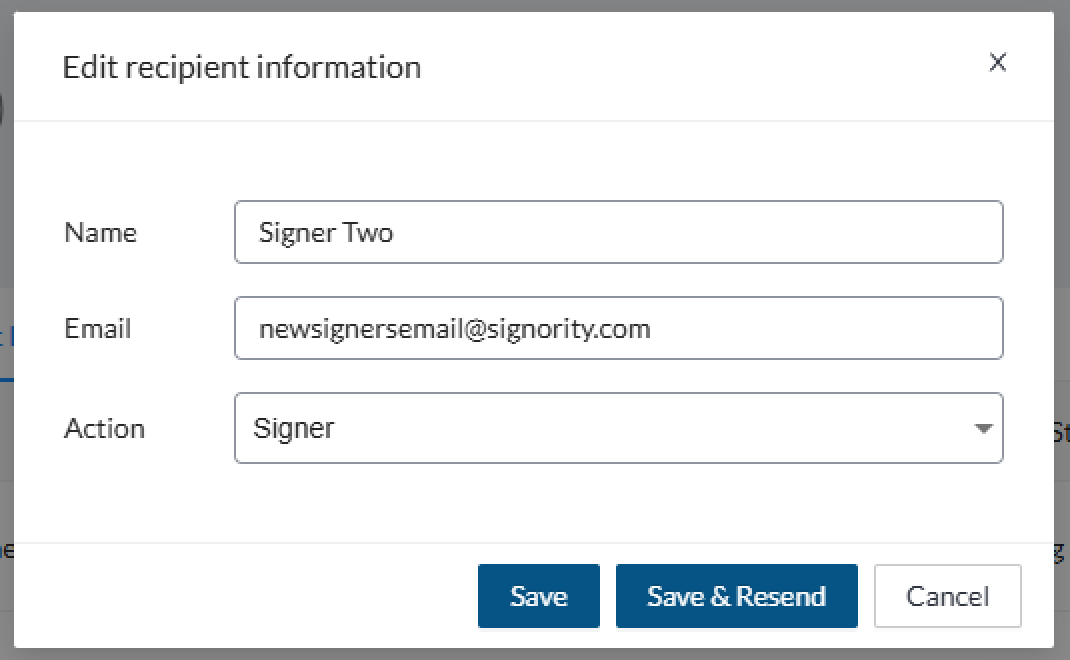
Note: Changing a recipient’s role to Viewer will remove all their tags and information from the workflow and cannot be undone.
-
Click Save & Resend to apply the changes and resend the invitation email.
Important notes:
-
If the document has a signing order, and the workflow has not reached the updated recipient, their invitation email will not be sent until it is their turn to sign.
-
When the invitation is resent, the link from the original email is invalidated.
-
The E-Sign Status will update to Waiting to Open, allowing you to track the updated workflow.
Remove a Recipient
To remove a recipient from a document workflow:
-
From the Dashboard, select Documents from the left navigation menu.
-
Locate the document you wish to change the recipient for and click the recipient’s email under the Recipients column.
-
On the Recipient List page, click the Remove Signer next to the recipient you want to remove.
Note: If the Remove Signer option is not available, the document may have a signing order in place. In this case, you may need to wait until it reaches the recipient’s turn in the workflow before removing them. Alternatively, you can update the recipient’s email to prevent the document from reaching the original recipient.
-
In the confirmation window, click Confirm Remove Signer to complete the action.
Note: This action cannot be undone.