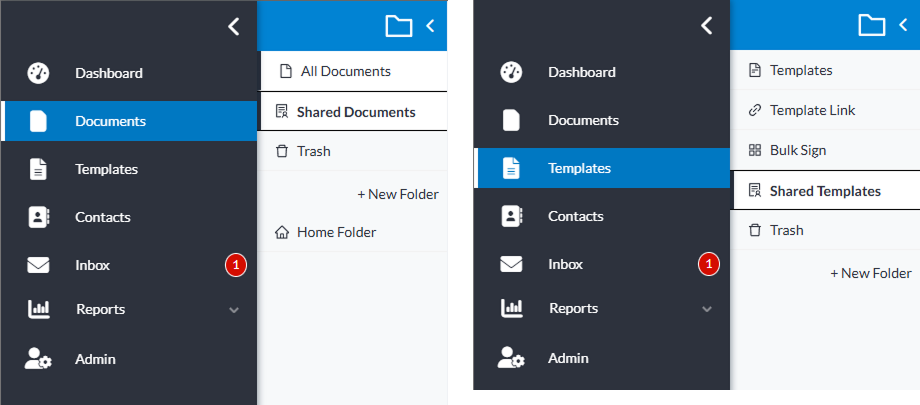
Documents and templates can be shared by any user role within your team. When a document is shared, it becomes available to the team the user belongs to.
Sharing a Document/Template with Your Team
-
From the Dashboard, select Documents or Templates from the left navigation menu.
-
Locate the document/template you want to share with your team.
-
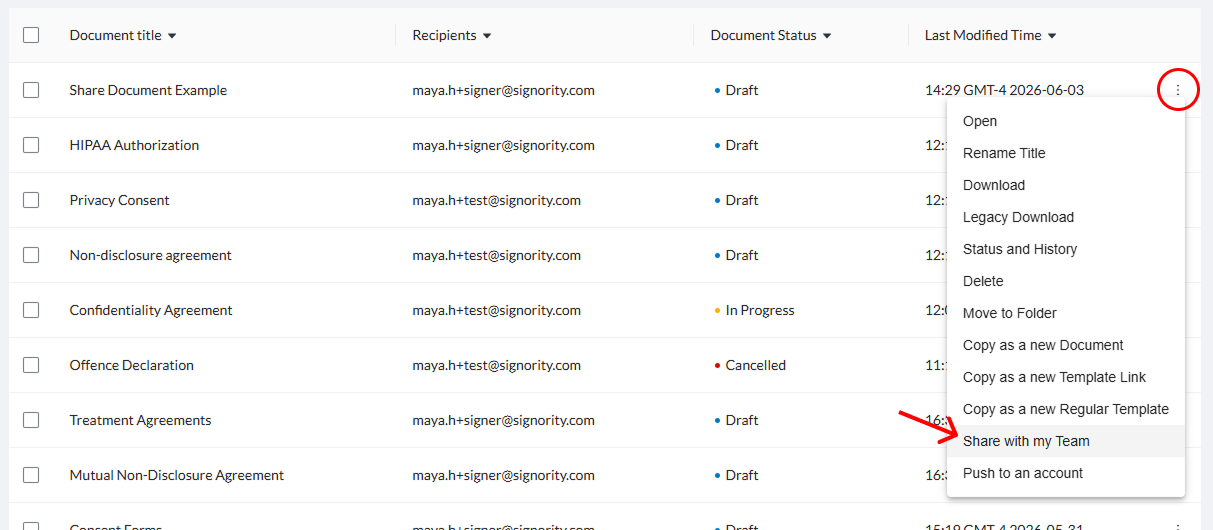
Click on the 3 dotes to the right of the file and then select Share with my Team.
-
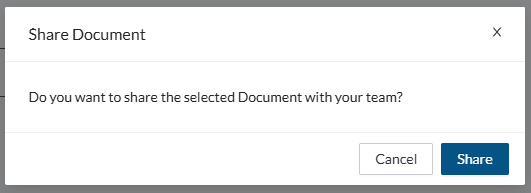
In the Shared Document pop-up window, click Share to confirm.
-
Once your document has been shared, click Cancel to close the window.
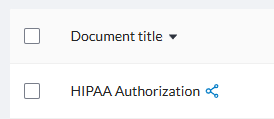
Your document will now have a shared icon next to the title.
Sharing/Unsharing Multiple Documents/Templates with Your Team
-
From the Dashboard, select Documents or Templates from the left navigation menu.
-
Locate and select the checkbox next to the documents/templates you want to share with your team.
-
In the action menu above the documents/templates list, select More > Share/Unshare with my Team.
-
In the Shared/Unshare Document pop-up window, choose if you would like to Share or Unshare the documents you selected.
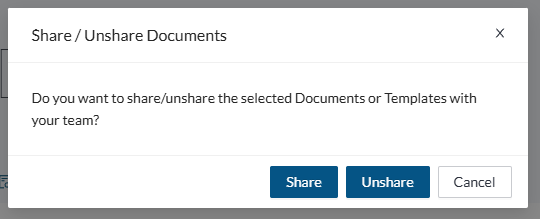
-
Once you are done, click Cancel to close the window.
Unshare a Document/Template with Your Team
-
From the Dashboard, select Documents or Templates from the left navigation menu.
-
Locate the document/template you want to share with your team.
-
Click on the 3 dotes to the right of the file and then select Share with my Team.
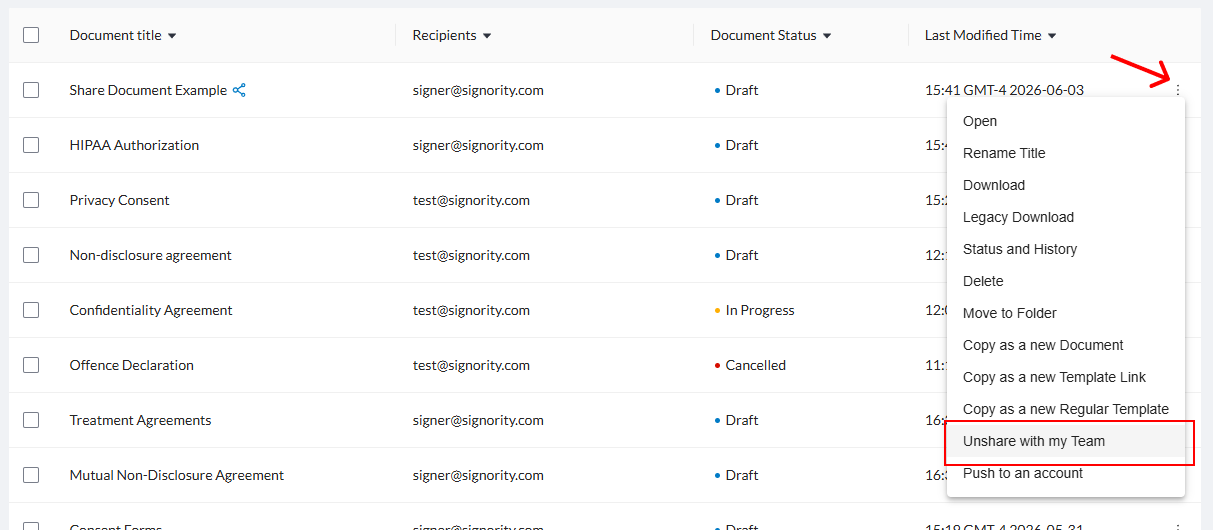
-
In the Shared Document pop-up window, click Unhare.
-
Once your document has been Unshared, click Cancel to close the window.
Automatically Share All Documents or Templates with Team
-
In the Main Header, click the profile icon in the top right and then select Profile Settings.
-
By default, document sharing is OFF and template sharing is ON.
If you turn the Automatically Share doc to team “On”, each newly created document will be a shared document to your subteam.
View All Shared Documents
-
In the secondary side bar menu, select Shared Documents or Shared Templates.