

Sometimes, after sending a document for signing, you may need to stop the signing process. Signority provides flexible cancellation options that allow you to control what happens after cancelling a document.
If you are a signer and need to stop signing, you can reject the document instead.
Cancelation Options
When cancelling a document, you can choose from four different outcomes:
|
Cancellation Type |
Description |
|---|---|
|
Cancel the document and send an email notifying the signers |
Sends an email notification and cancels the document without creating a copy. |
|
Cancel the document and do not send an email to the signers |
Cancels the document without creating a copy or alerting recipients. |
|
Cancel the document and create a copy to resend with added content |
Creates a copy of the document package, including workflow, recipients, tags, and any previously entered data (except signatures/dates). |
|
Cancel the document and create a copy to resend without added content |
Creates a copy of the document package, but excludes any data previously entered by recipients. |
Cancel a Document without Resending
Note: If you need to correct or update a document before sending it again, choose one of the “create a copy” options above and follow the steps in Cancel and Resend a Document.
-
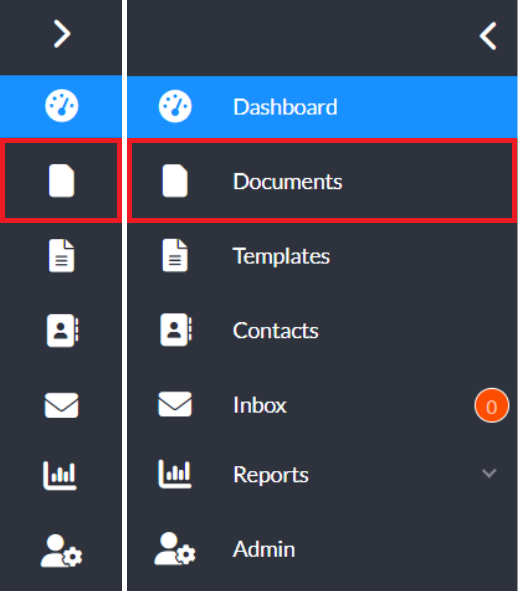
From the Signority user dashboard, click Documents in the left-hand navigation menu.
-
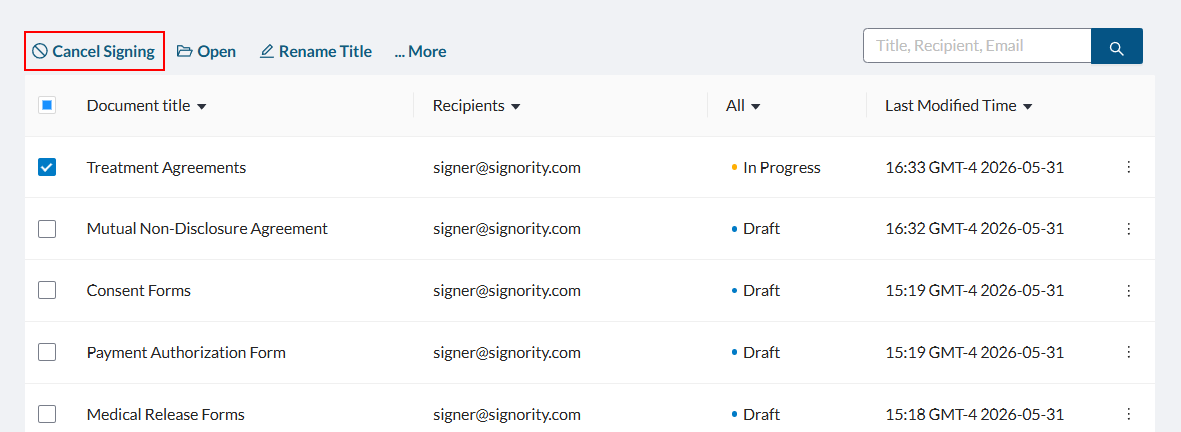
Locate the document that you want to cancel to resend and select the checkbox beside it.
-
In the action menu that appears above the documents list, select Cancel Signing.
-
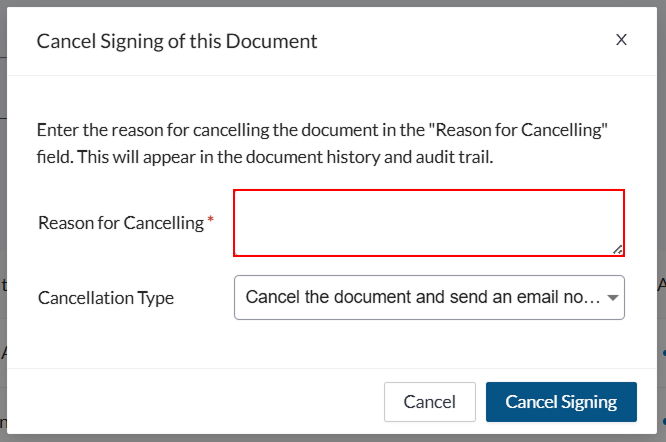
In the Cancel Signing pop-up window, enter the reason you are cancelling the document in the text area. This will be recorded in the audit trail.
-
From the Cancellation Type dropdown, choose what will happen after cancelling the document.
-
Click Cancel Signing to finish cancelling the document.