

Signority's document filtering tools help you quickly narrow down long lists of documents on the Shared Documents page, and on the Team Documents page for Doc Admins. You can filter by multiple statuses at once, filter by document Owner, and layer filters together to get exactly the results you need.
Filtering by Document Status
-
From the Dashboard, go to select Documents from the left navigation menu and then select Shared Documents in the secondary side menu.
-
Click the dropdown arrow on the Doc Status column header.
-
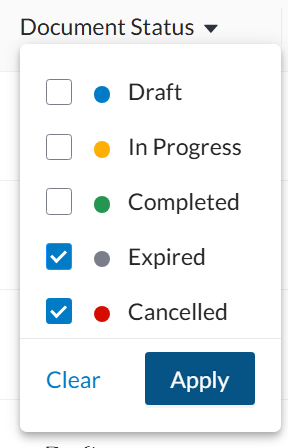
Select the checkbox next to each status you want to filter by. You can select multiple statuses at once, for example Draft, In Progress, Completed, Cancelled, Expired, and Expiring Soon.
-
Click Apply.
Each selected status appears as its own chip under Filters: at the top of the list (for example, Status: Expired and Status: Cancelled). Click the X on a chip to remove that single filter, or click Clear All to remove every filter at once.
Filtering by Owner
-
Click the dropdown arrow on the Owner column header.
-
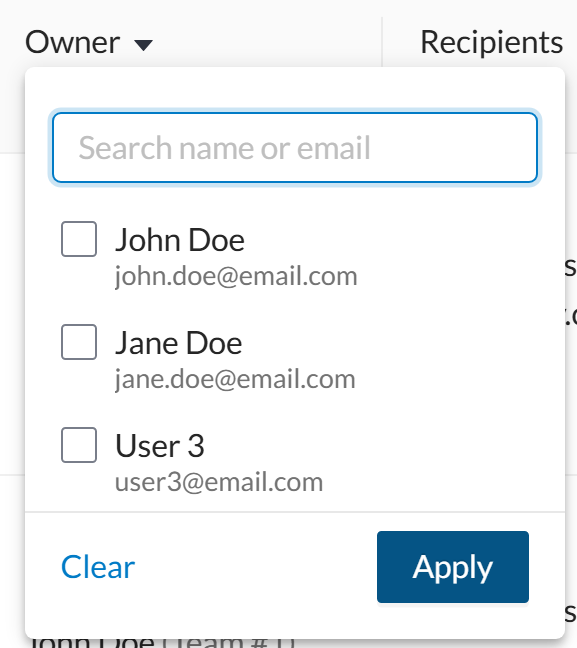
Use the Search by name or email field to find a team member, or scroll the list.
-
Select the checkbox next to each owner you want to filter by.
-
Click Apply.
Each selected owner appears as its own chip under Filters: (for example, Owner: John Doe and Owner: Jane Doe).
Layering Filters Together
Status and Owner filters can be combined to narrow your results further. Filters within the same category are matched with OR (for example, status is Draft or In Progress), while filters across categories are matched with AND (for example, status is In Progress and owner is John Doe or Jane Doe). All active filters are listed together under Filters:, and Clear All removes them all at once.
Filtering on Team Documents (Doc Admins)
Doc Admins have an additional Team Documents page in the left navigation menu, which is not visible to other user roles. Doc Admins can use the same Status and Owner filtering tools described above on the Team Documents page to review and filter documents across the whole team.