

To change the date's format:
-
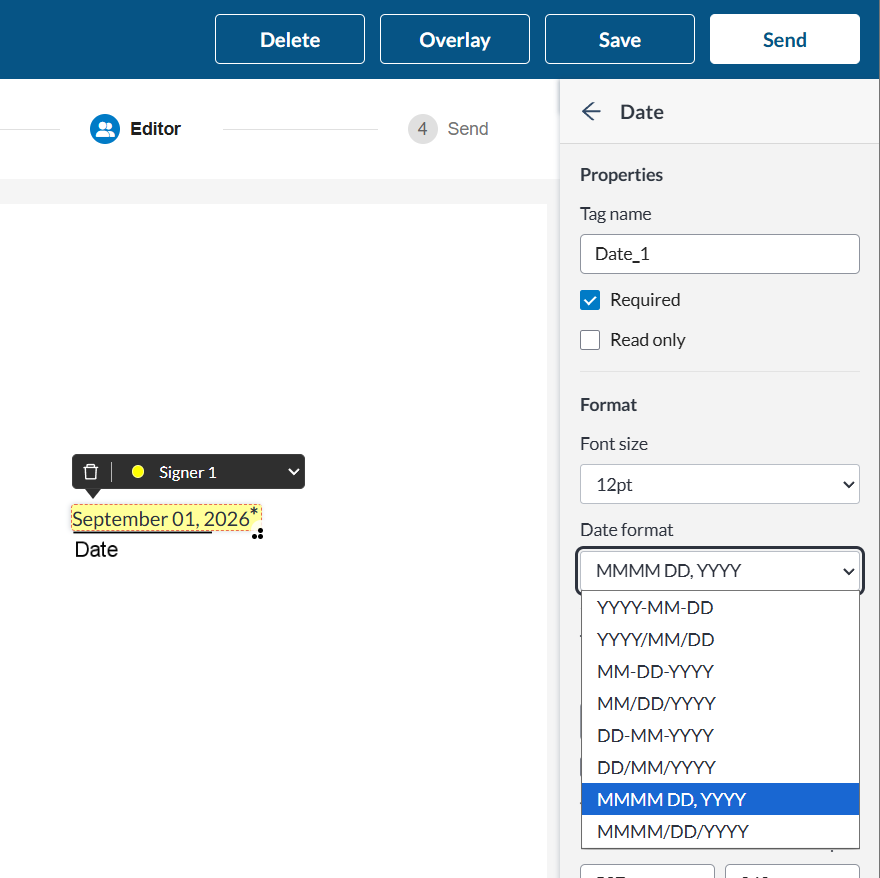
Select the date tag. Its settings open automatically in the panel on the right side of the Editor.
-
In the settings panel, you can adjust the following format options:
-
Change the tags font sizing to match your document (See, Tag Font Size)
-
Change the date format to one better suited for your document. You can can choose from:
-
YYYY-MM-DD (eg. 2026-01-25)
-
YYYY/MM/DD (eg. 2026/01/25)
-
MM-DD-YYYY (eg. 01-25-2026)
-
MM/DD/YYYY (eg. 01/25/2026)
-
DD-MM-YYYY (eg. 25-01-2026)
-
DD-MM-YYYY (eg. 25/01/2026)
-
MMMM DD, YYYY (eg. January 25, 2026)
-
MMMM/DD/YYYY (eg. January/25/2026)
-
-
Note: Changing the date format will automatically resize the tag to fit the chosen format and will undo any changes you have made to the tags size.
-
For Sign Date Tags, you can also chose if you would like the time recorded in the Sign Date Tag be selecting the checkbox next to Display Time.