

By default, checkboxes default style when checked is the standard checkmark, however, Signority also allows you to customize this to be an ‘Dot' or a 'Cross’.
Customize Checkmark Tag Style
To change a checkboxes style when checked:
-
Select the checkbox/checkbox group.
-
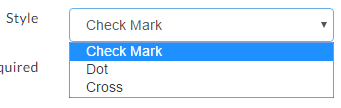
In the checkbox properties, under Style, select from the following checked styles:
-
Check Mark (Default)
-
Dot
-
Cross (X)
-
How Checkbox Styling appears on Finalized Documents
When the signers are using checkboxes, the styles will be applied to the finalized document. The style will not be visible as the signer is using the checkbox on the signing page directly. The finalized PDF, however, will show the style you selected when preparing your document.

Note: When a checkbox is part of a checkbox group, changing the style for a single checkbox from that group will not change the format for all the checkboxes exepct for new checkboxes added to that group from that checkbox. If you wish for all checkboxes in the group to have the same setting, you will need to select all the checkboxes that form the group. See, Multi-Tag Editing for Faster eSign Prep.