

Custom Plan Feature
Encrypted Stamps provide a higher level of security and are applied on behalf of an organization. If you are assigned to a document that requires an encrypted stamp, you may be able to request the stamp if you are not authorized to apply it yourself.
Once you send the document, the authorized individual will receive an invitation to apply the stamp.
Note: Your account Billing or Super administrator must have set up an Encrypted Stamp and enabled you to request it. (See the Predefining Stamps guide.)
How to Add an Encypted Stamp Tag
-
Begin by creating a new document, then upload your documents or go straight to the add recipients page.
-
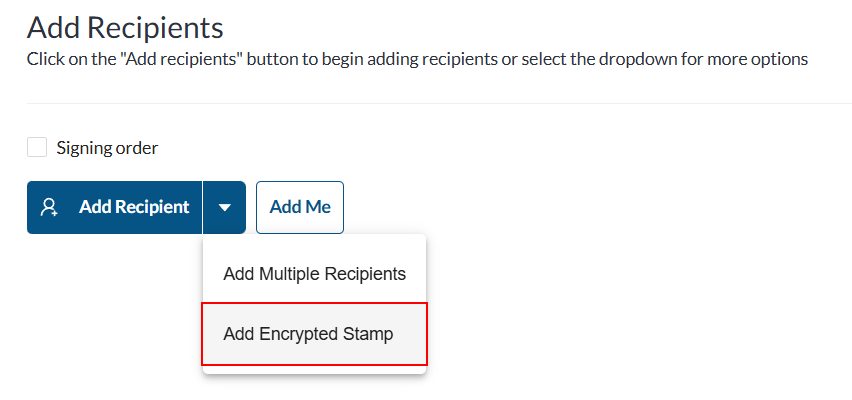
On the recipient's page, click the dropdown arrow next to Add Recipient and select Add Encrypted Stamp.
-
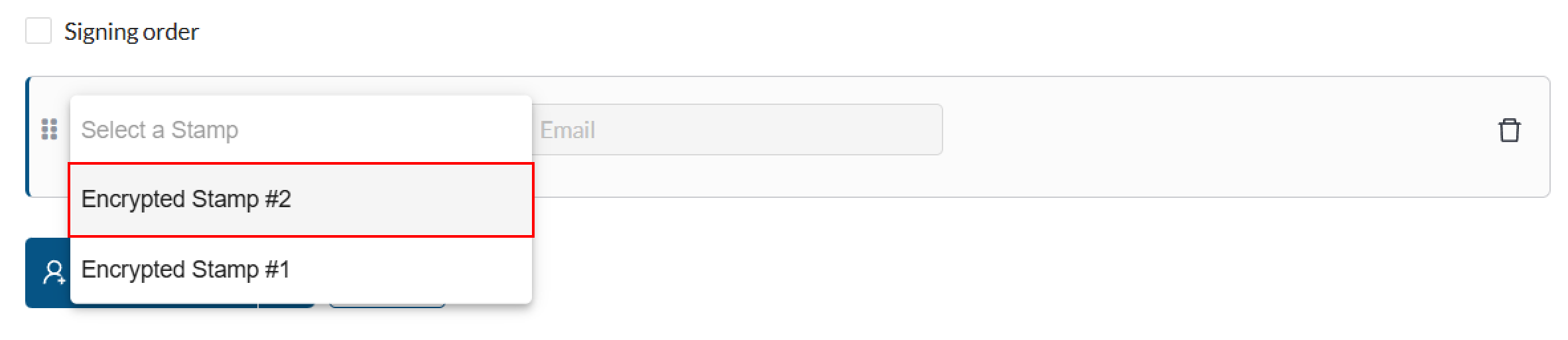
On the new recipient that was added, select which encrypted stamp you wish to request from the dropdown.
-
Add the rest of your recipients and then click Next to proceed to the document editor page.
-
Select the encrypted stamp recipient on the left panel, and the Encrypted Stamp tag will appear as an option under Tags on the left panel.
-
Drag and drop the Encrypted Stamp tag onto your document.
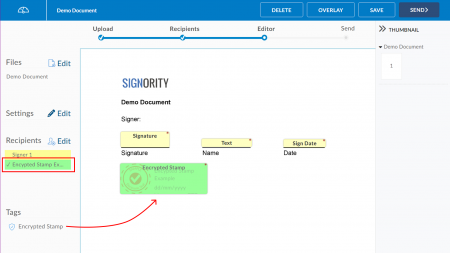
Note: An overlay of the Encrypted Stamp will appear to show how the seal will look once it is applied.
-
Finish setting up your document and then click Send.
The email associated with the electronic seal you chose will be sent an email when the document is ready for them to apply the seal.