

Setting a deadline for an eSign document helps ensure timely completion and keeps your workflows on track by automatically expiring them if not completed within a set time. By default, documents in Signority expire 180 days after sending. You can modify this as needed as well as customize an expiration warning for recipients to prompt them to act quickly and reduce delays.
Note: Your default expiration settings may vary depending on your personal settings or global/team configurations defined by an administrator. In some cases, it may even be locked by an admin. If you have questions, contact your Signority administrator.
If you want to update the default expiration or reminder schedule, see Change the Default Expiration and Automatic Reminder Schedule.
You can define the deadline in one of two ways:
-
Duration-based [Default]: Set how many days recipients have to sign the document. The countdown begins once the document is sent.
-
Fixed date: Select Custom Date from the dropdown to set a specific date and time when the document will expire.
This article walks you through how to set and manage signing deadlines so your documents are completed efficiently.
Set Up a Document Expiration Deadline
-
On the Editor page, click Edit next to Settings in the left panel.
-
In the settings pop-up window, select the Notifications tab.
-
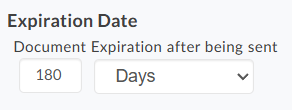
Under Expiration Date, use the dropdown to choose how to set the deadline, then complete the corresponding field:
-
Days (default): Enter the number of days until the document expires.
-
Custom Date: Select a specific expiration date and time from the calendar.

-
Note: The custom date and time is based on your Signority Account’s time zone, not the recipients time zone.
-
Click Save in the bottom right of the Settings pop-up to apply the expiration date.
We also recommend setting up automatic reminders and notifications for document expiration.
Monitoring a Document Deadline
After you send out a document, you can view documents that will soon expire in the Document page.
-
From the Dashboard, select the Document from the left navigation menu.
-
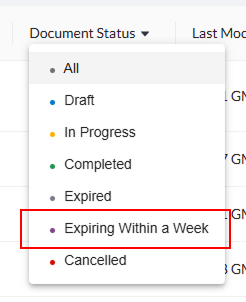
On the Document page, the document status for documents that are expiring within a week will still be listed as In Progress. In order to see which documents are expiring soon, click on the Document Status column header and then select Documents Expiring Within a Week.
We strongly recommend resending documents and making sure you sent it to the right email if it ever gets to that point. You can also directly contact the signers to remind them in case the automatic reminders are being ignored or lost.