When collecting highly sensitive Personally Identifiable Information (PII) online — such as credit card numbers or social insurance numbers — senders can use the Signority Masked Text Tag to maintain strong privacy and security standards.
Setting Up the Masked Text Tag
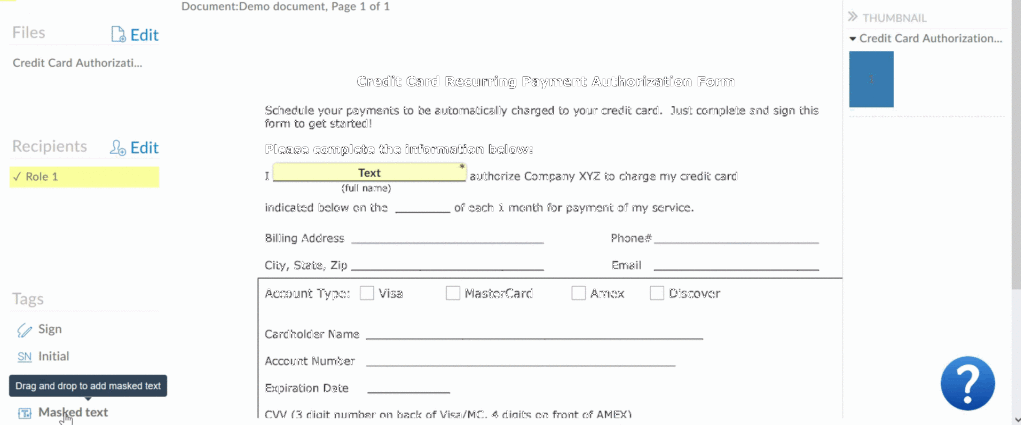
The Masked Text Tag works very similarly to a regular Text Tag. To add one:
-
Drag and drop the tag from the left-hand tag list onto the appropriate place in your document.
-
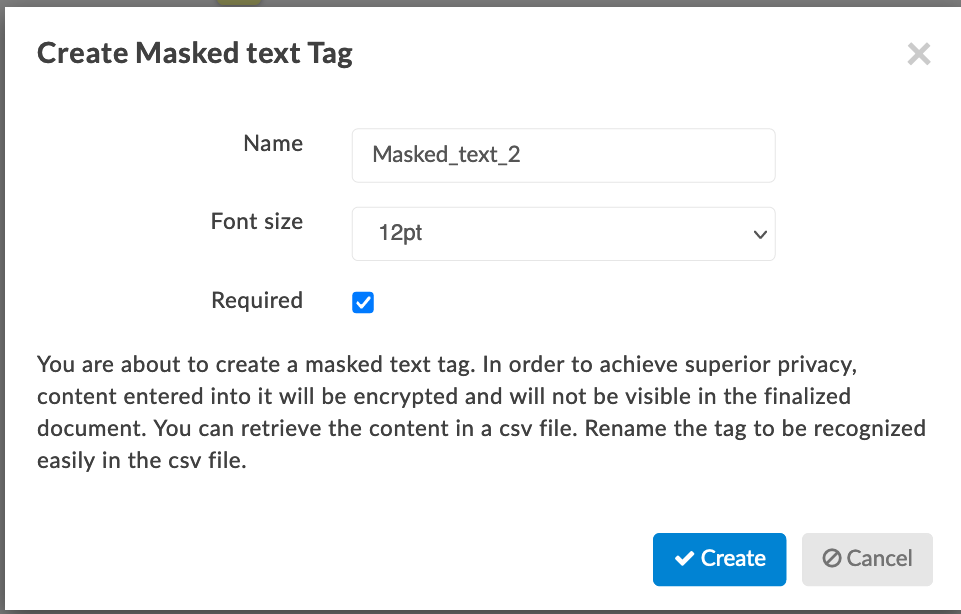
A popup will appear prompting you to rename the tag to something recognizable — this is especially important if you're collecting multiple pieces of sensitive information, since the data is retrieved via a .csv file.
How Masked Tags Work for Recipients
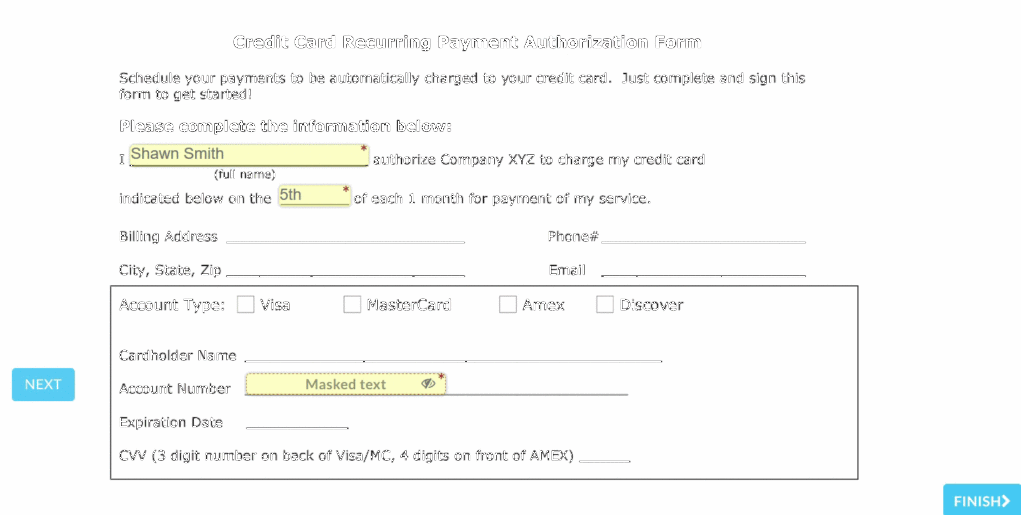
Sending a document with a masked field works the same as any other document. On the recipient's end, they enter their information into the tag field. Once they click away, the content is hidden and replaced with the tag's name followed by asterisks.
At any point in time before finalizing the document, the recipient can click the tag, review the information that was entered, and edit as needed.
Accessing Sensitive Data After Finalization
After the document is completed, the finalized PDF can be accessed from your email notification or directly within your Signority account. In the PDF, all masked tag entries remain encrypted and hidden.
To retrieve the sensitive information:
-
Go to the Documents page in your account.
-
Click the document title to open it.
-
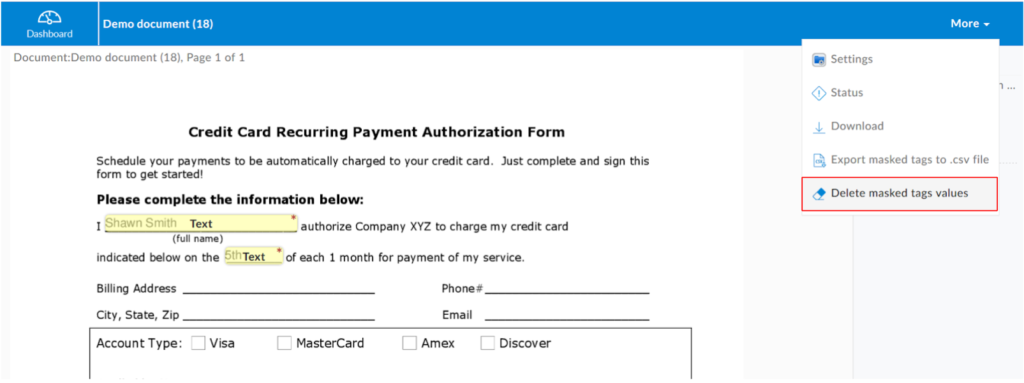
In the top right of the header, select the More > Export masked tags to .csv file.
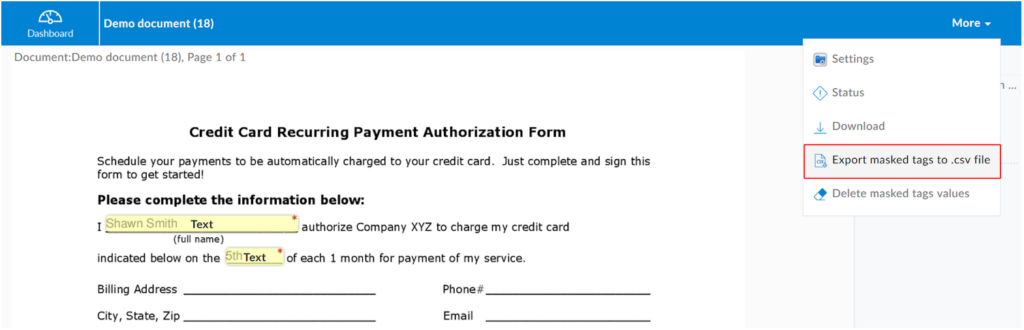
A .csv file containing the masked tag data will automatically download to your device.
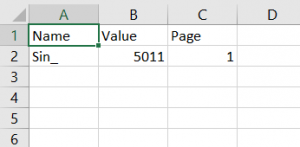
Deleting Masked Tag Data
Once you have securely recorded the sensitive information, you can permanently remove it from your Signority account:
-
Open the document.
-
In the top right of the header, select the More > Delete masked tag values.
-
Confirm the deletion when prompted.
After confirmation, all data entered into masked text tags is permanently deleted and cannot be recovered. The export and deletion options will also no longer appear in the menu.