

When you're sending out a document, Signority can send automated notification reminder emails to recipients and send you email updates on the status of a document. Most documents sent through Signority are signed within hours or a few days of being sent, but just in case there's a little delay, it's always safe to set some reminders & deadlines.
Tip: Constantly needing to change the notifications for document? Adjust your default notification settings under Account Settings. Administrators can also define default settings on a Global or Team level.
Overview of Options for Document Notification Reminders
-
Progress alerts to sender when recipients view or sign a document
-
What's included in the finalized document email to the signer and sender
-
Total number of reminder emails to recipients
-
Reminder email frequency
-
Expiration alert lead time
-
Define emails to send a copy of notifications to
-
Document expiration
Customizing Notification Reminder Settings
When designing your document for signature, there are two palces you can customize the notifications:
-
On the Recipients Page when creating a new document (Limited Settings)
-
On the Document Settings in the Editor
From the Recipients page
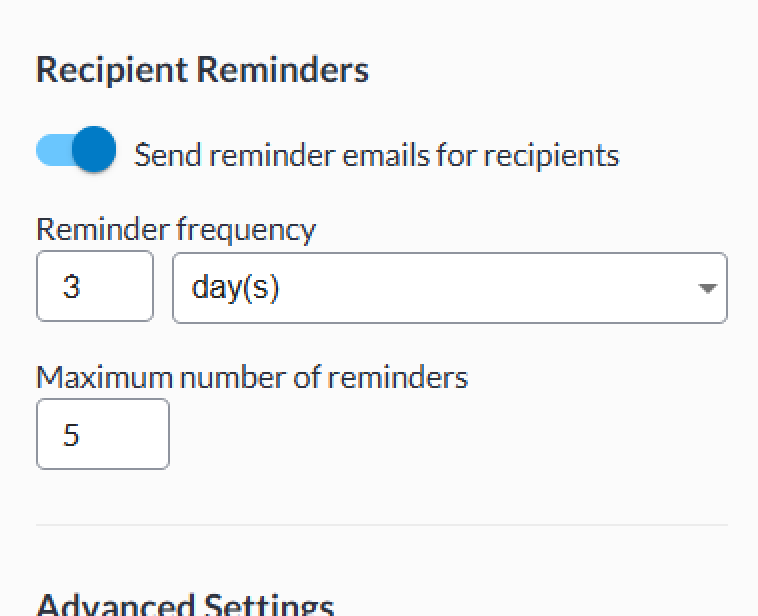
On the Recipients page, you can configure the email reminders for recipients who have not submitted the document yet on the right hand panel under Recipient Reminders. Here you can:
-
Send reminder emails for recipients: Enable/disable reminders for recipients
-
Reminder frequency: Set how often users will be reminded. You can use the dropdown to adjust if the value you enter is days, hours, or minutes.
-
Maximum number of reminders: Set a limit on how number of reminders a recipient will recieve
From the Document Settings in the Editor
-
On the Editor page, open the documents settings by selecting Edit next to Settings on the left panel.
-
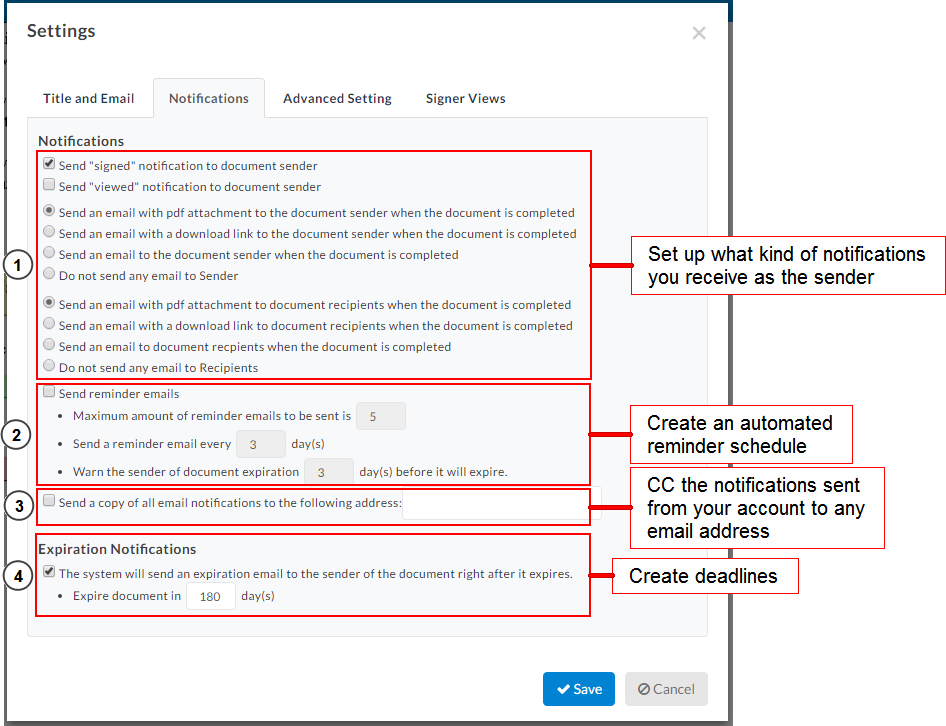
In the Settings window, select the Notifications tab.
-
Here you can:
-
Configure what notifications you will receive as the sender
-
Progress alert to sender when a document is opened and viewed by a recipient
-
Progress alert to sender when a document is signed by a recipient
-
What's included in the finalized document email to the sender
-
-
Make adjustments to your recipients automated reminder schedule
-
Enable/disable reminders for recipients
-
Set how often users will be reminded. You can use the dropdown to adjust if the value you enter is days, hours, or minutes.
-
Set a limit on how number of reminders a recipient will recieve
-
-
Set up an email address you would like to CC notifications sent about the document to. For more information, see Copy Notification Emails to Record All Signer Interactions.
-
Set up your documents deadline & expiration notifications
-
When to warn signers about the document deadline
-
-
-
When you're done, click Save and add Tags to the document before sending it out for signature.