

Formulas allow you to automatically populate a tag with a value based on the values of other tags in a document. They are limited to the prefillable text and number tags—tags that can be filled out by the document sender prior to sending out the document for signing—and regular text tags.
In Signority, there are three types of formulas you can create:
-
Conditional Formula: Set a tag's value based on a condition.
-
Copy Formula: Set a tag to take on the value of another tag.
-
Sum Formula: Set a tag to take the value of the sum of the values from multiple tags.
How to Set up a Formula
After you have added all the necessary tags that will be a part of the formula:
-
Select the prefillable tag or text tag that you would like to create a formula for. Its settings open automatically in the panel on the right side of the Editor.
-
In the settings panel, locate the Saved Conditions property and click on the ellipsis button to the right of it.
This will open the Conditions pop-up window where you can configure your formulas.
Configure a Conditional Formula
-
In the Conditions window, select the Conditional option from the formulas dropdown.
-
Then next to "IF Tag", select the tag that will be used for the condition.

-
After that, select a comparison operator under "is" and a "value" to compare the tag's value to.

-
Finally, enter the text that the tag should take on if the condition is met.
-
At the end, you will have something that looks like the following.
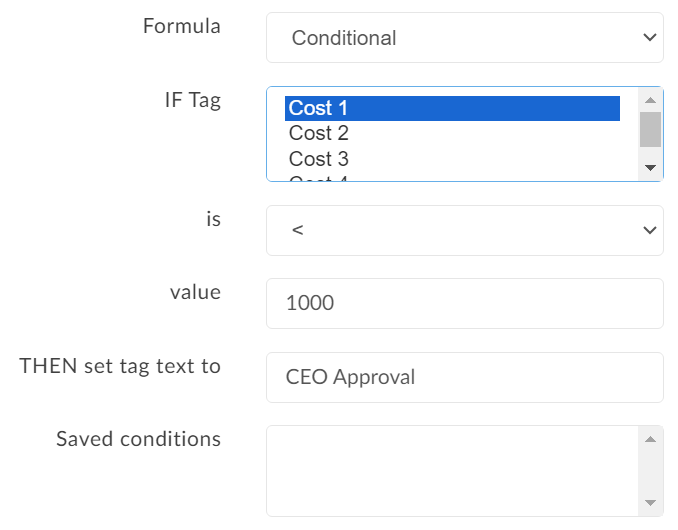
This conditional formula says: if the tag named "Cost 1" is greater than 1000, then set the tag to contain the text "CEO Approval". -
You can then save the formula.
Configure a Copy Formula
1. In the Conditions window, select the Copy option from the list of formulas.

-
Under Tag, choose the name of the tag you wish to copy the value from.
-
You can then save the formula.
Configure a Sum Formula
-
In the Conditions window, select the Sum option from the list of formulas.

-
Next, to choose the tags to be included in the sum there are two ways you can do this:
-
Use Shift + Click to select a range.
-
Ctrl + Click (⌘Cmd + Click on Mac) to select a single tag in addition to other already selected tags.
-
-
You can then save the formula.
Save your Formula
Once your formula is complete, click +Add at the bottom of the Conditions window then click Save to return to the tag's settings.
The condition line will now be marked as "Defined".
How to Edit a Formula
To edit a condition:
-
Select the tag and navigate to the Conditions window.
-
At the bottom of the Conditions window, select the formula you wish to edit and click Modify at the bottom of the pop-up.
-
Make the necessary changes and then click Save.
This feature is actively being enhanced. Stay tuned for more formulas in the future!